Install Signage Space on Android TV
Install the player from the Play Store on an Android TV, a TV box or a streaming stick — the steadiest way to run a screen unattended.
- Open the Play Store on the TV itself — Not the Play Store on your phone — the one on the TV. On most Android TVs it sits on the home row; on a box or stick it is in the apps list. Anything you install from your phone will not appear on the TV.
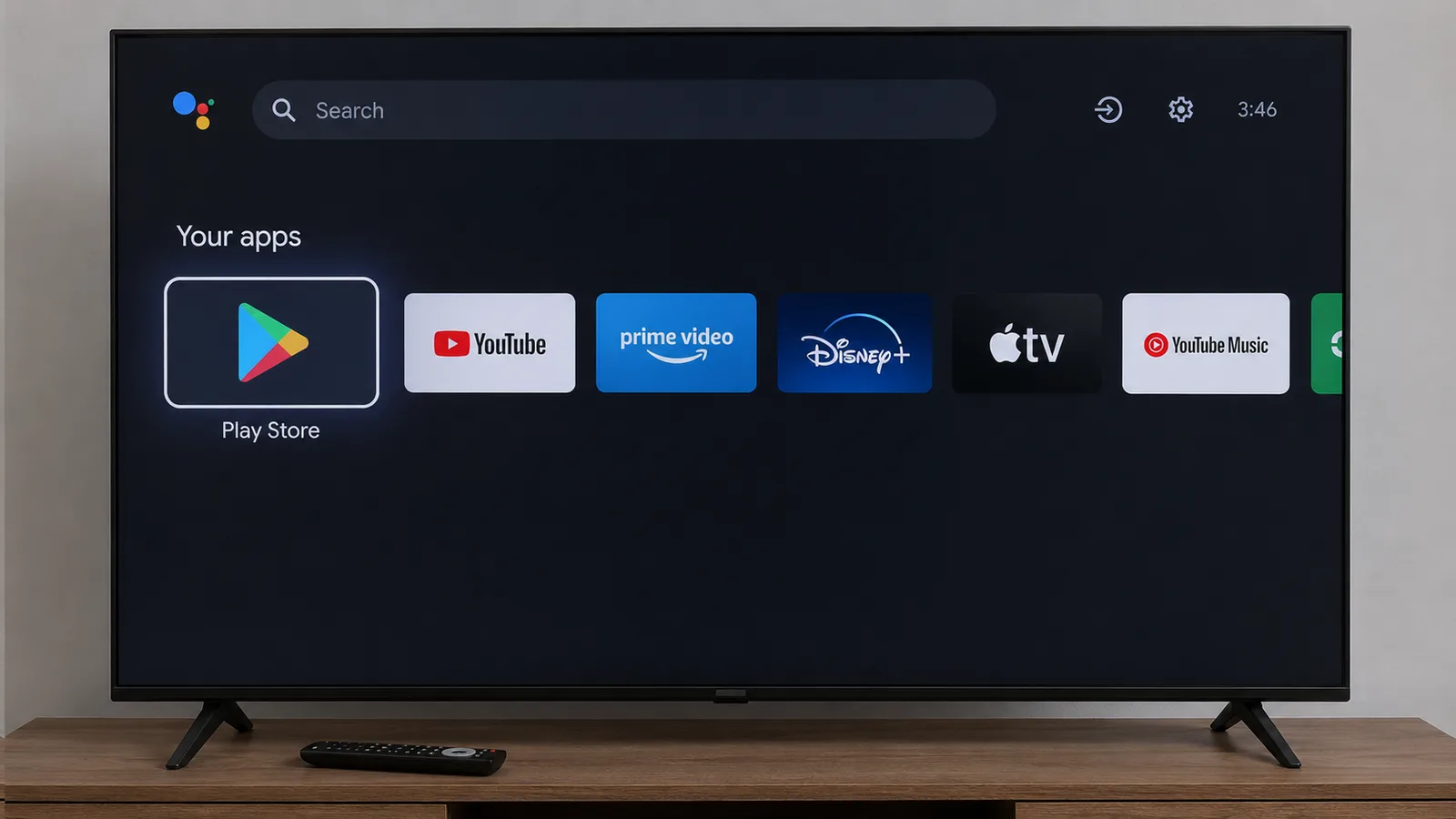
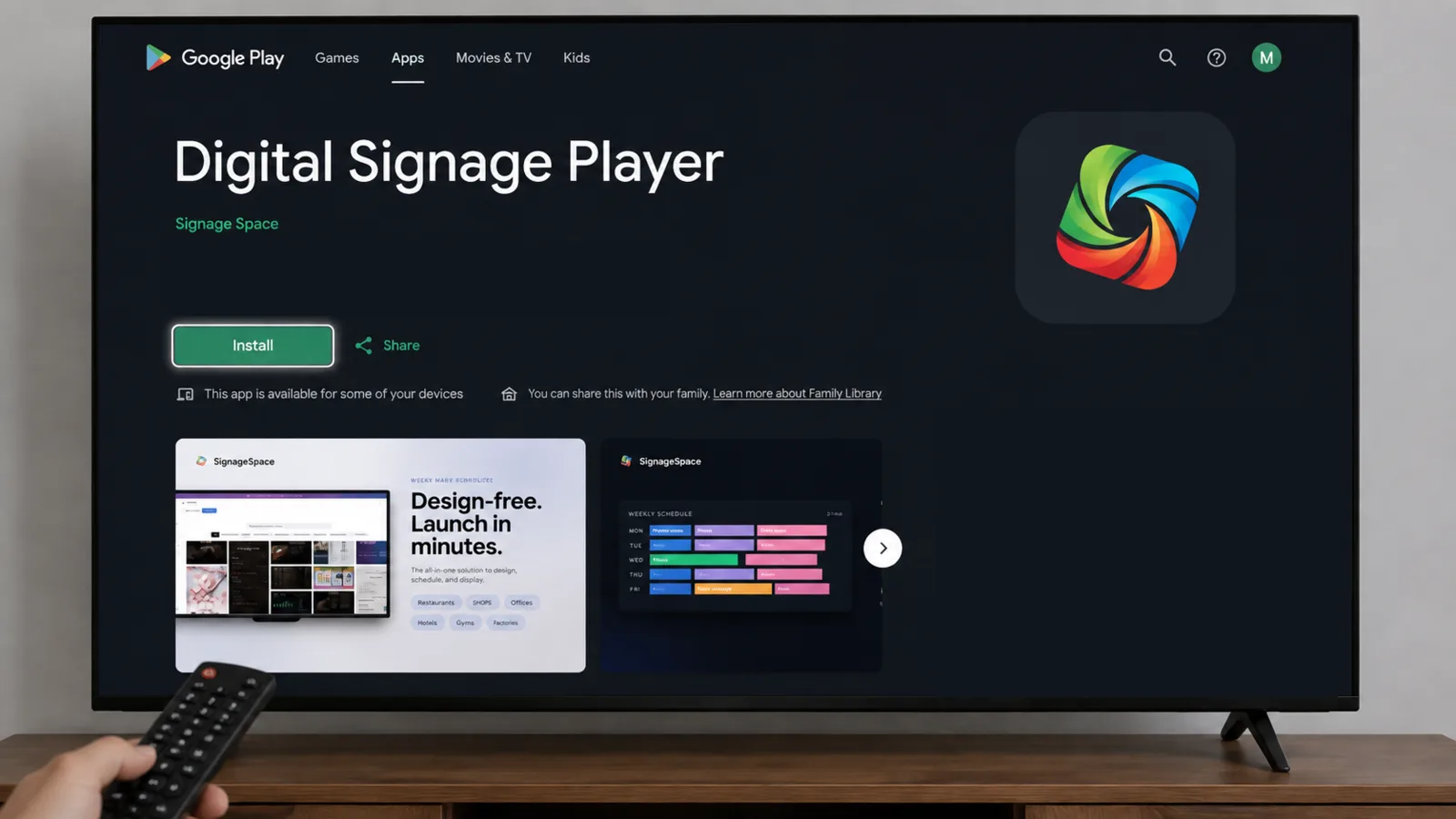
- Search for SignageSpace and install it — Use the remote to search for SignageSpace and install the result. Typing on a TV is slow, so if the remote has a microphone button, say the name instead.
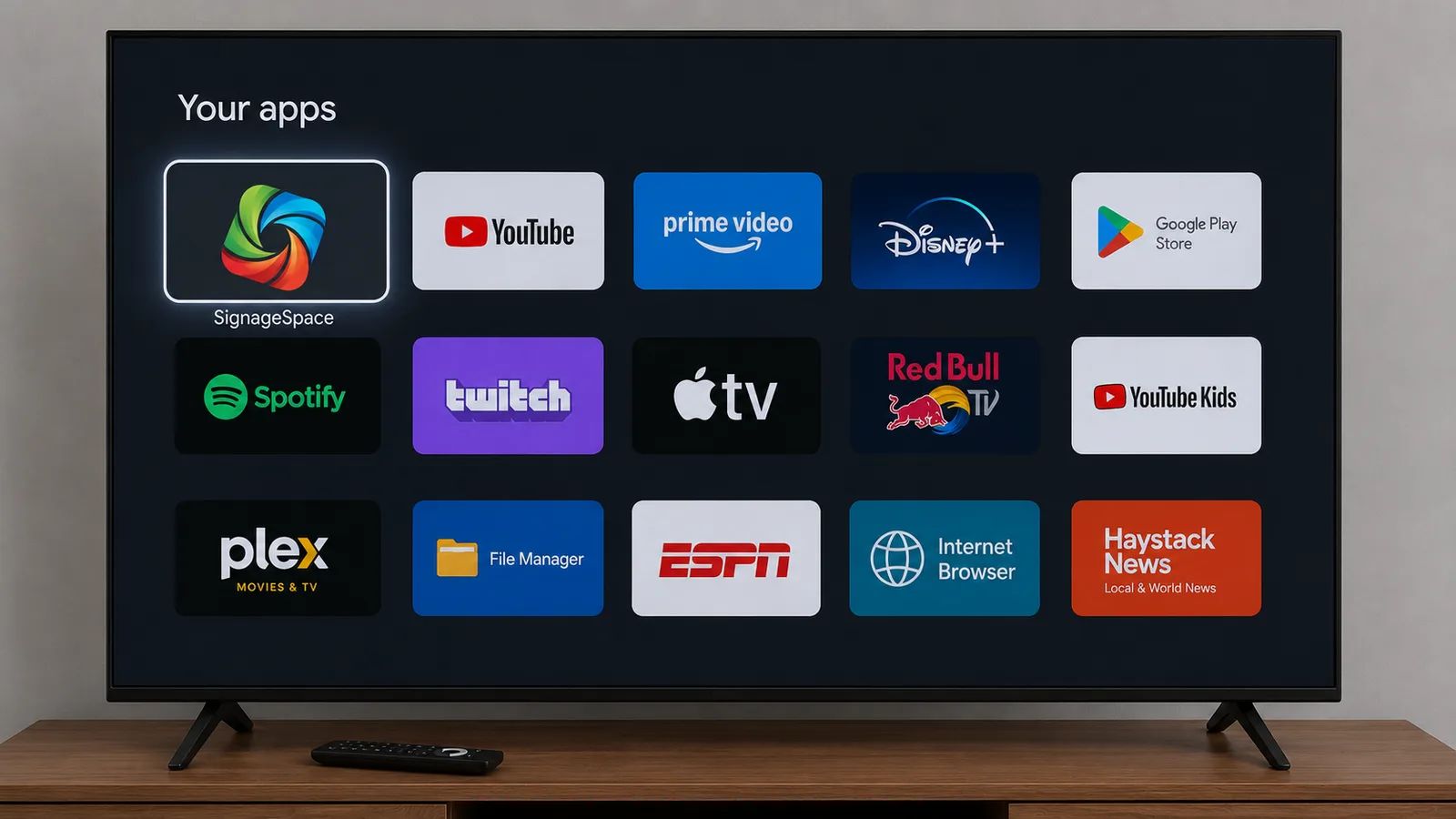
- Open the app — It does not ask you to log in. The TV never holds your account, which is why you can hand a device to a shop or a branch without handing over your password.
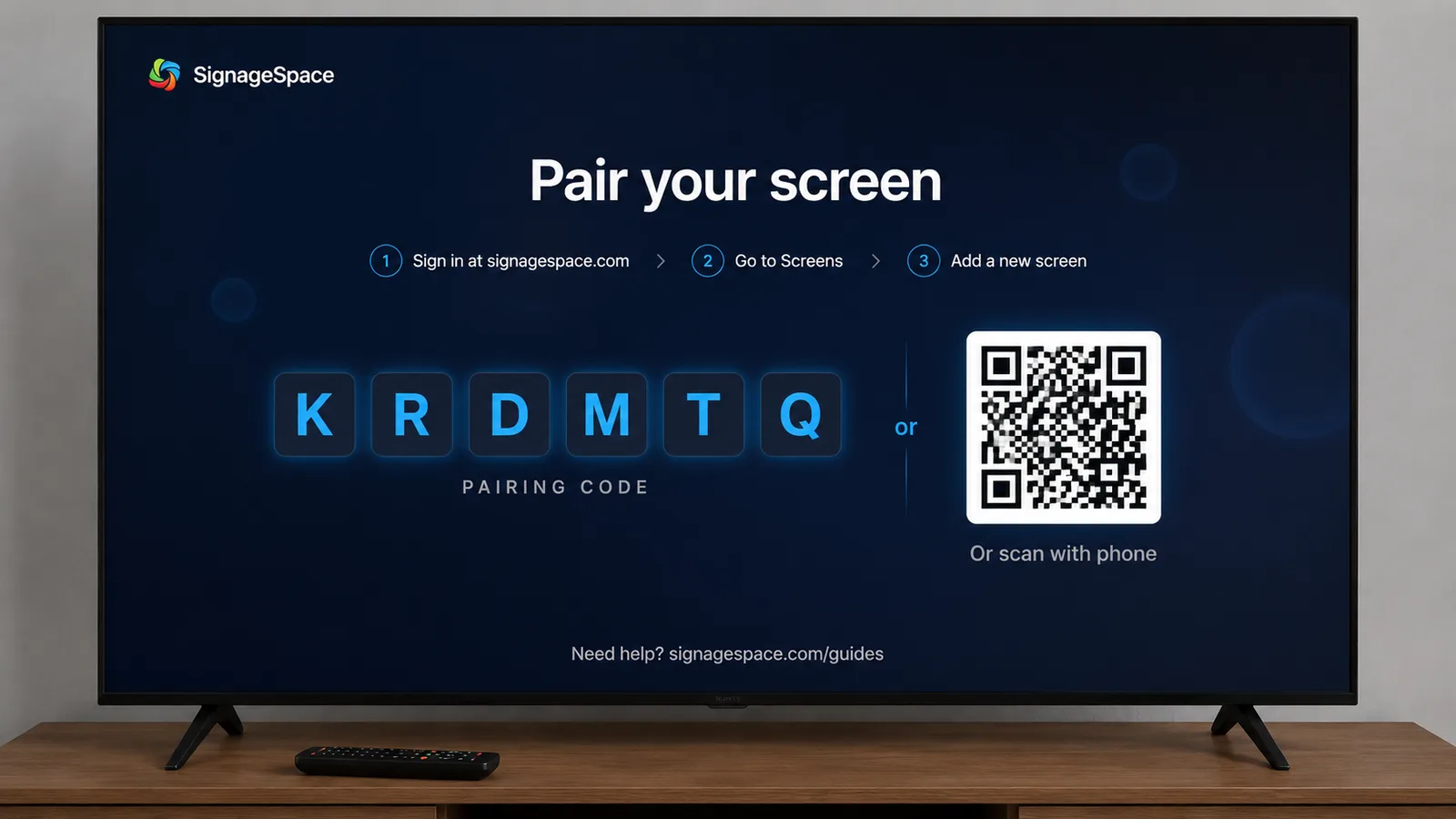
- Read the six-letter code — The player shows a six-letter code on the TV. That code is the whole handshake — it is what tells your account which TV this is.
No Play Store? Install the APK
Some TV boxes ship without the Play Store, and some devices will not list our app. The same player is available as a file you install yourself. It is the fiddliest part of any of these guides, so here it is in full.
- Get the file onto the device — A TV has no browser to download with, so the file has to arrive another way. If the device has the Play Store but not our app, install a sideloading app such as Downloader and give it the address above — it fetches the file straight to the TV. If there is no store at all, copy the APK onto a USB stick from your computer and plug the stick into the TV.
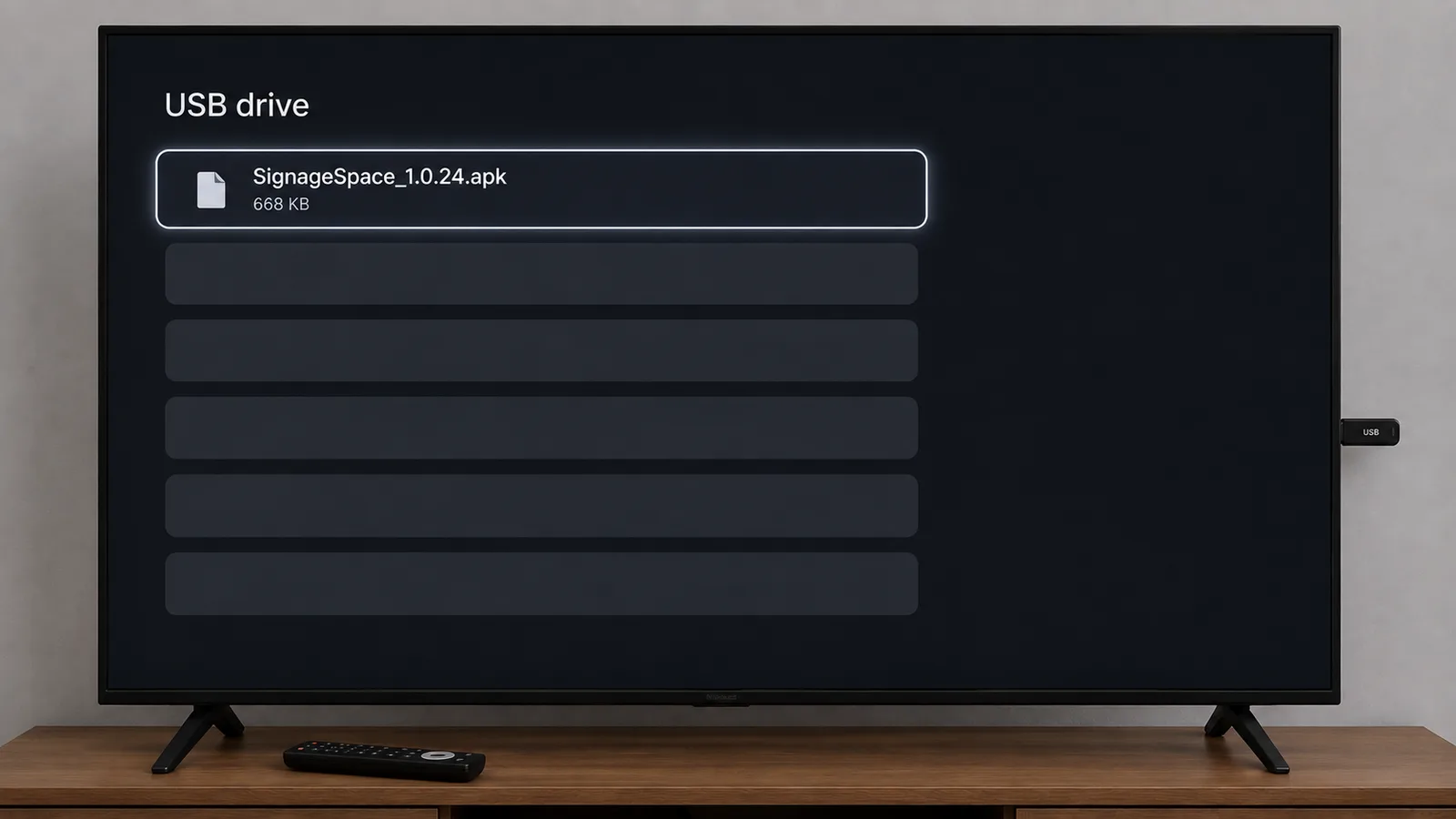
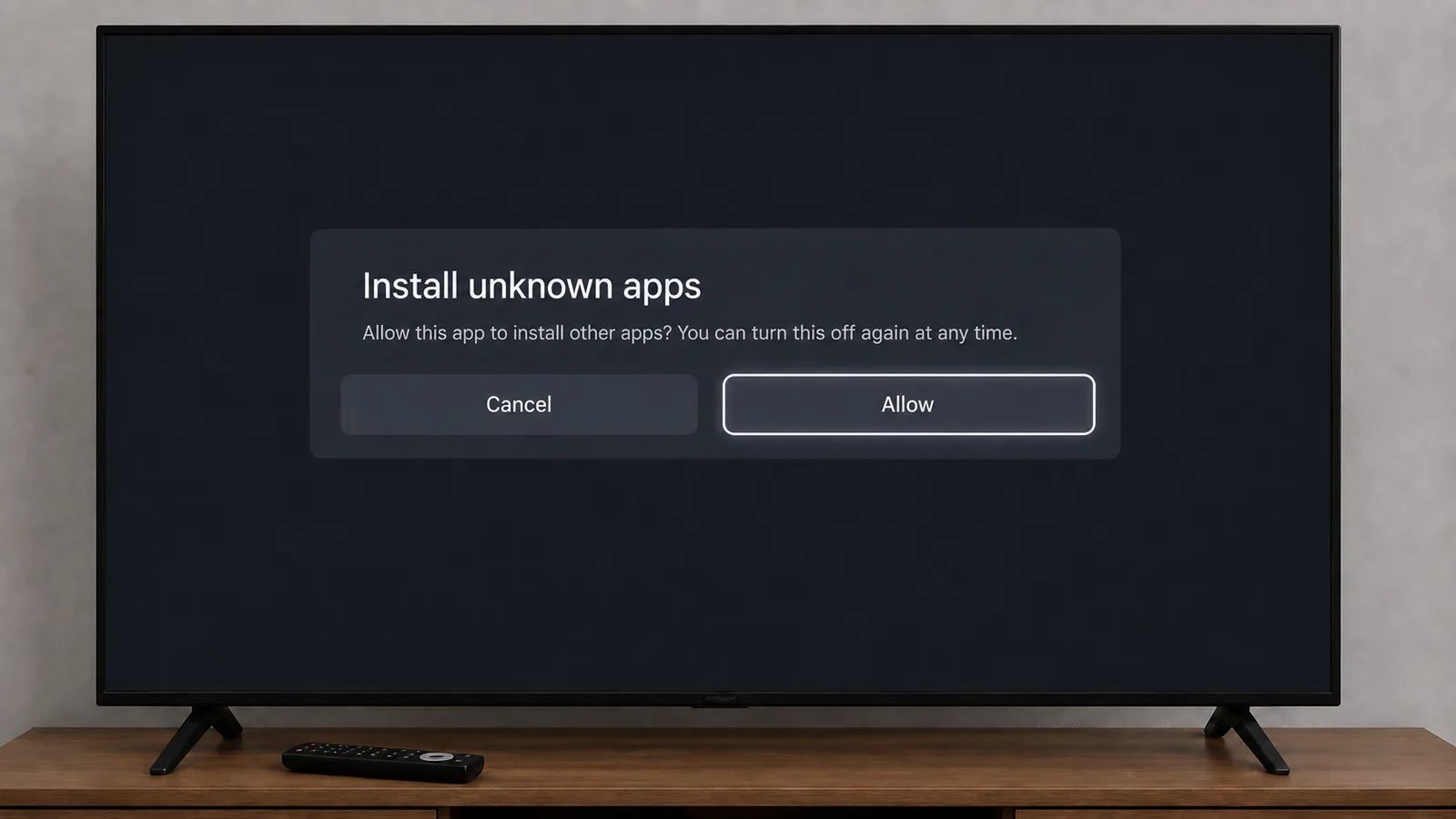
- Let that app install apps — Android will not let one app install another until you say so. The moment you open the file, the TV asks — allow it, and it takes you to the setting itself. The permission belongs to that one app, not to the whole device, so this is not the same as leaving the device open.
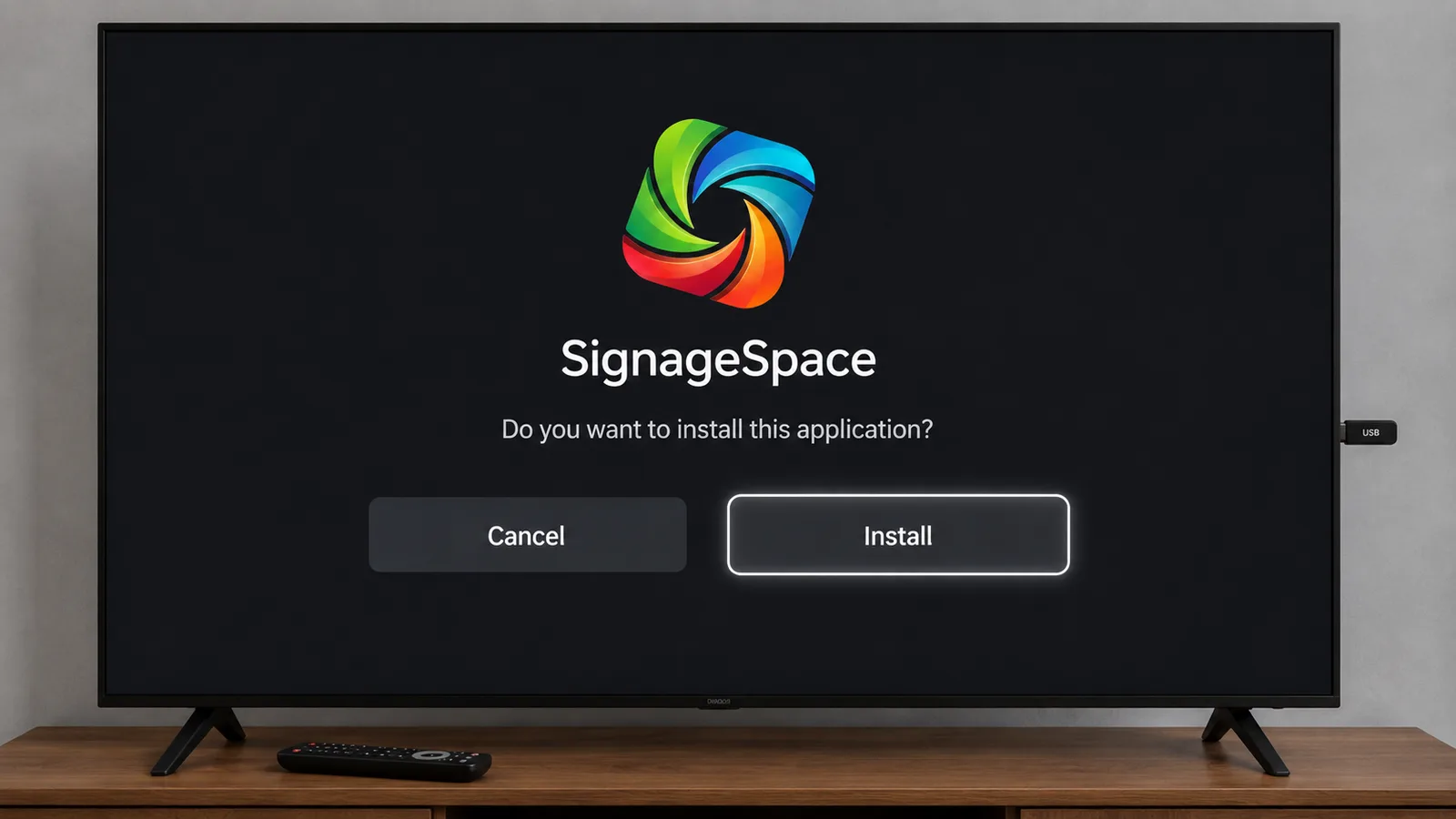
- Open the file and install it — The file is named SignageSpace with the version after it, and it is under a megabyte, so the install takes seconds. Confirm when the TV asks.
- Find it in the apps list — A sideloaded app does not always appear on the home row. Open the full apps list and it is there. From here on nothing is different — open it, read the six letters, and the screen behaves like any other.