Install Signage Space on an LG TV
Install the player straight from the LG Content Store on a webOS TV — the screen runs itself, with no box, stick or computer behind it.
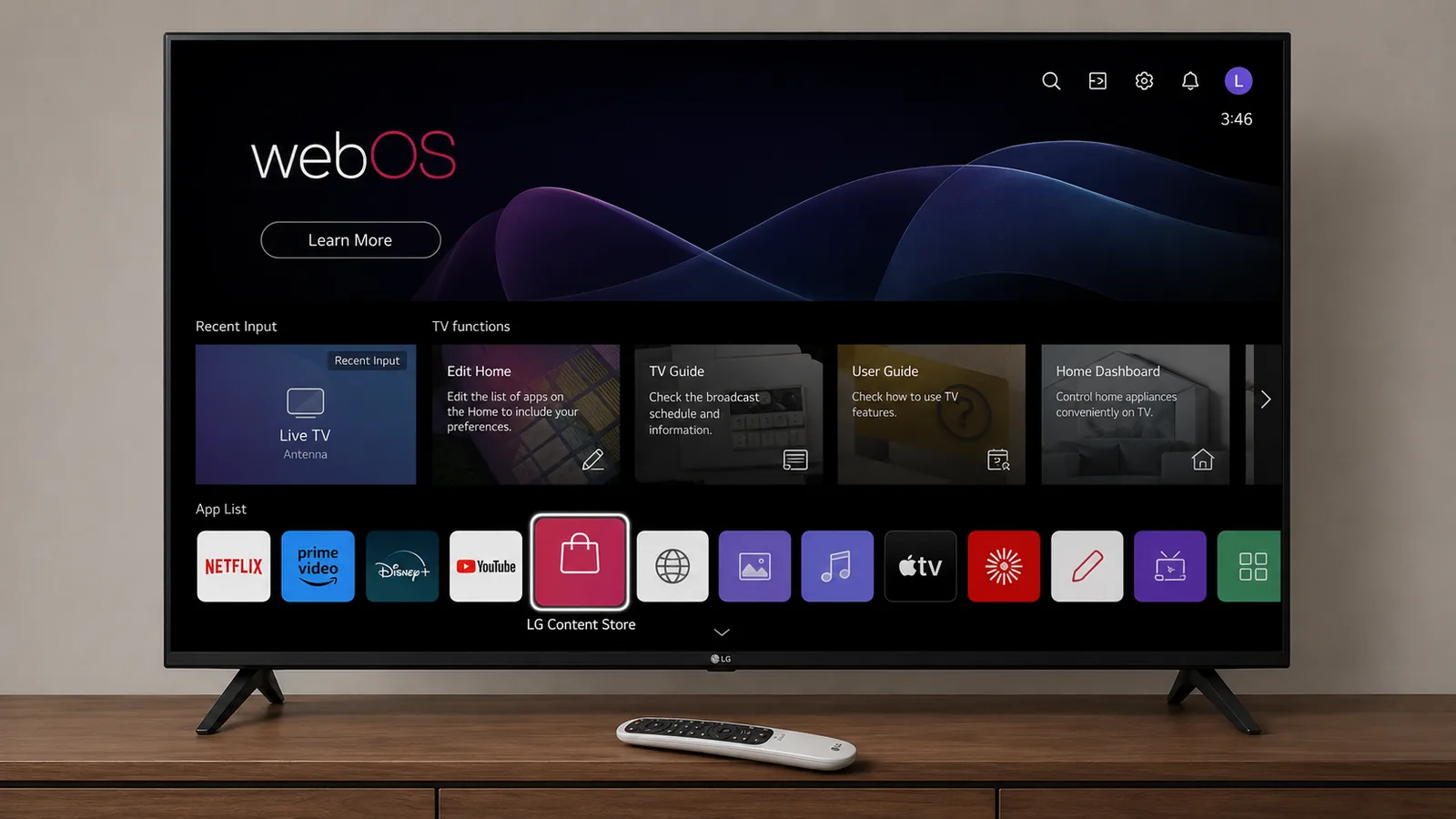
- Open the LG Content Store on the TV itself — Press Home on the remote and the launcher bar appears along the bottom of the screen. The LG Content Store sits in that bar, or in the apps list beside it. It has to be the store on this TV — there is no way to push an app to it from a phone.
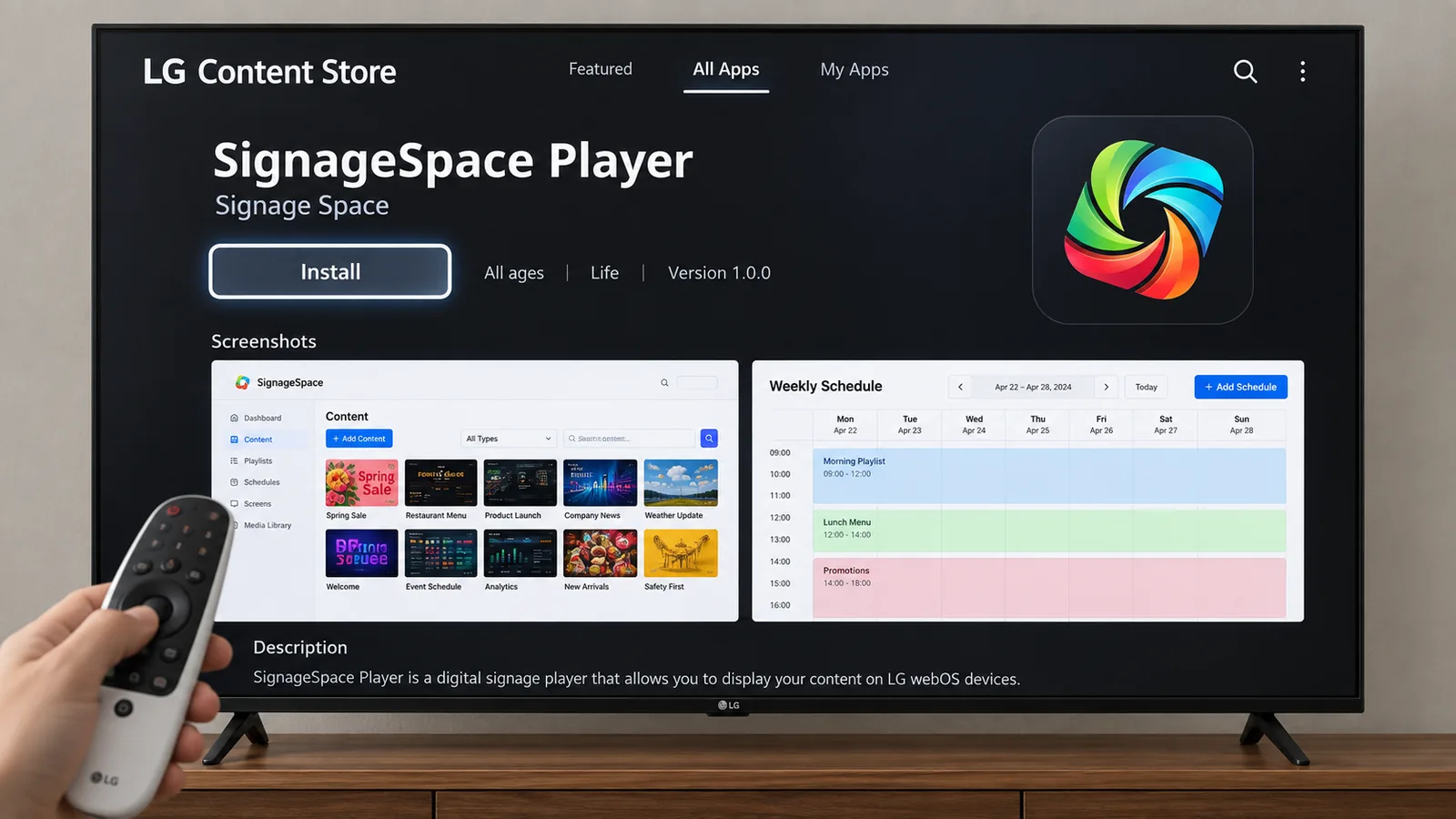
- Search for SignageSpace and install it — Open search in the Content Store, type SignageSpace and open our listing, then choose Install. Typing on a TV is slow; if you have a Magic Remote, use the pointer or the microphone button instead.
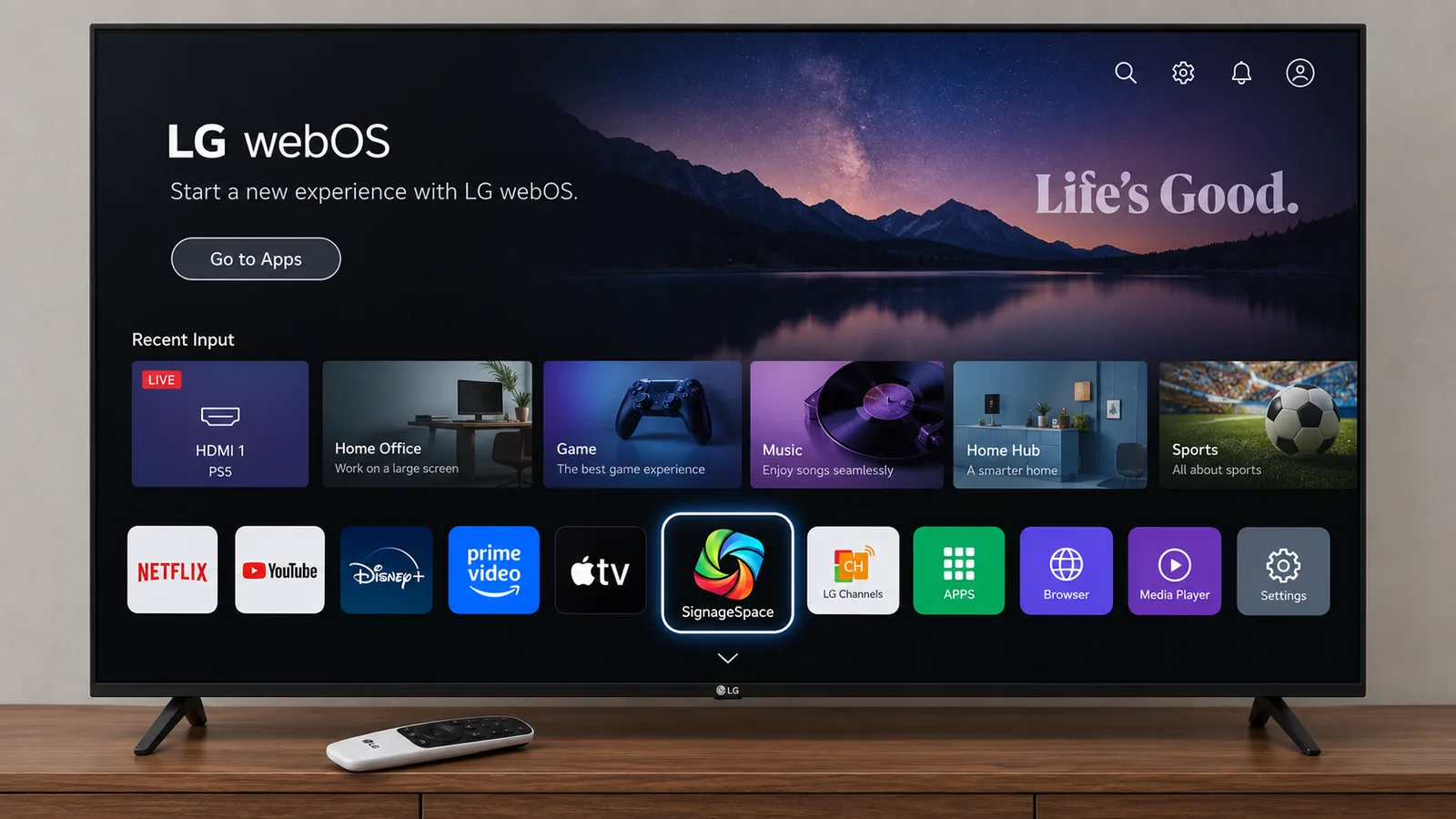
- Open the app — Once installed, Signage Space joins the launcher bar at the bottom of the home screen. Open it there. It does not ask you to log in — the TV never holds your account, which is why you can hand a screen to a shop or a branch without handing over your password.
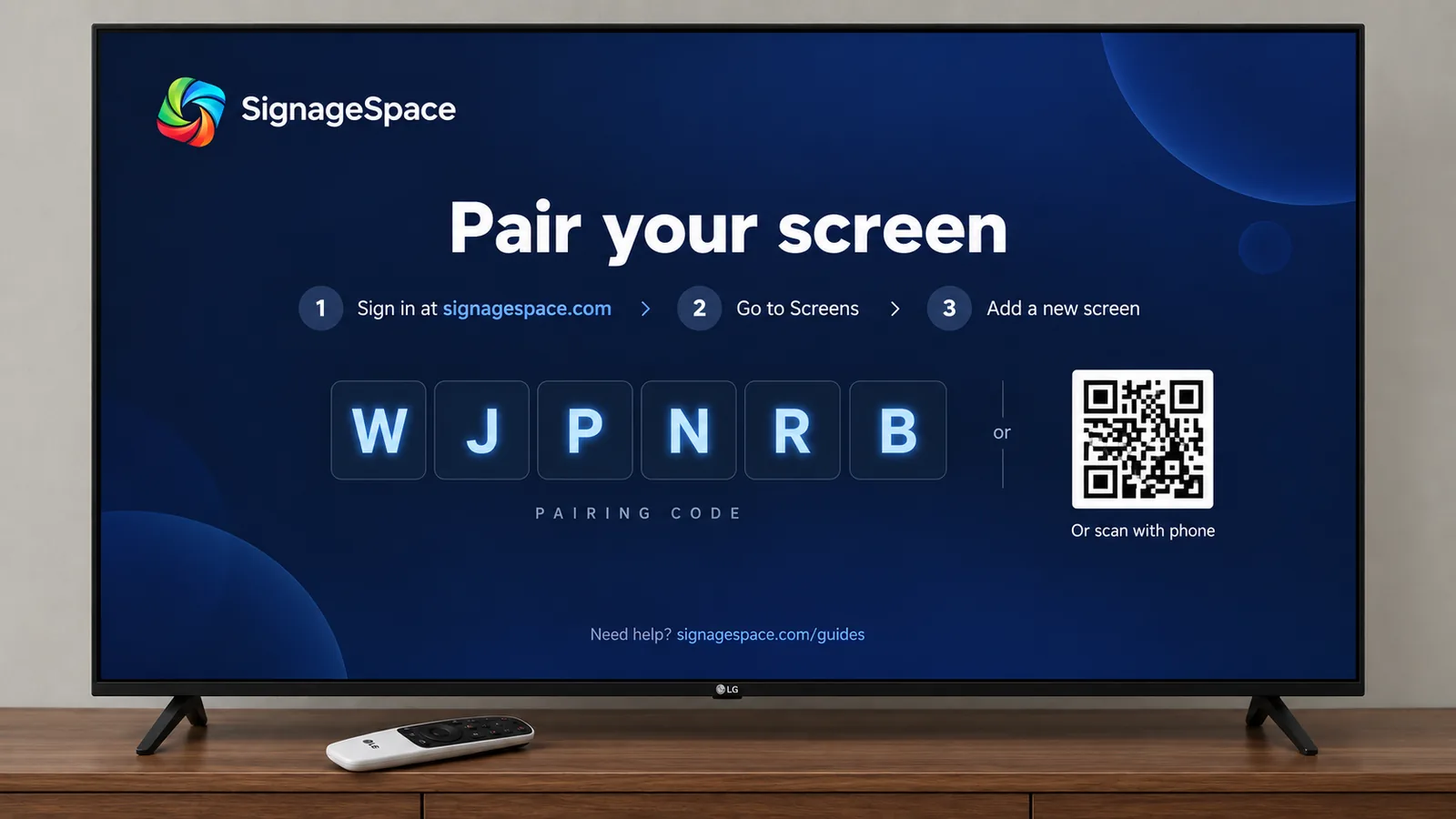
- Read the six-letter code — The player shows a six-letter code on the TV. That code is the whole handshake — it is what tells your account which screen this is.