Install Signage Space on Linux
Run the player on any Linux box wired to a screen — a universal AppImage, or native packages for Debian and RedHat families.
- Connect the machine to the screen — Plug in HDMI and switch the TV to that input first, so you can see what the machine is doing while you work.
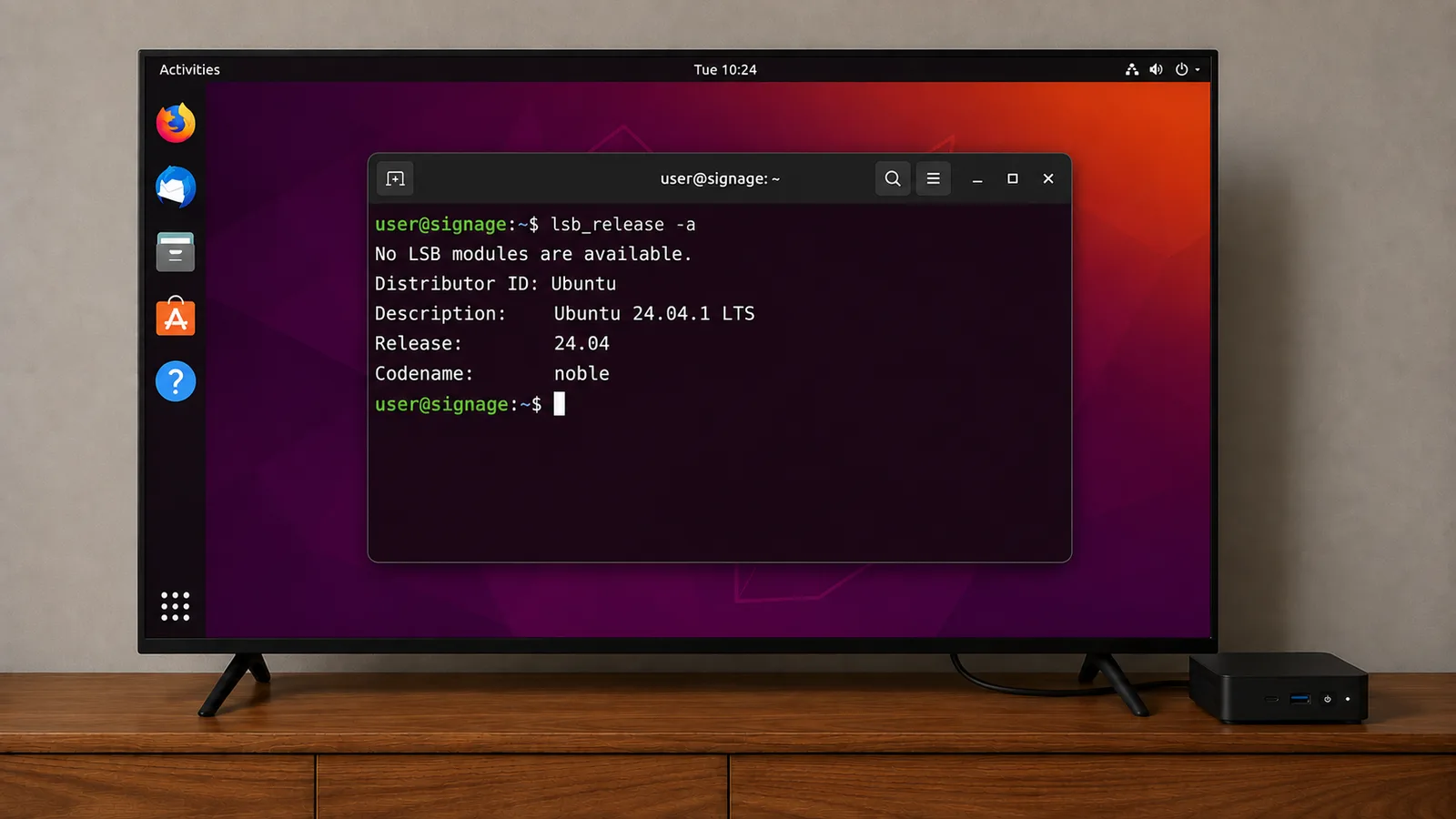
- Pick a package — The AppImage runs anywhere and needs no package manager — take it if you are unsure. Use the .deb on Ubuntu or Debian and the .rpm on Fedora or RHEL if you would rather the player be managed by your system.
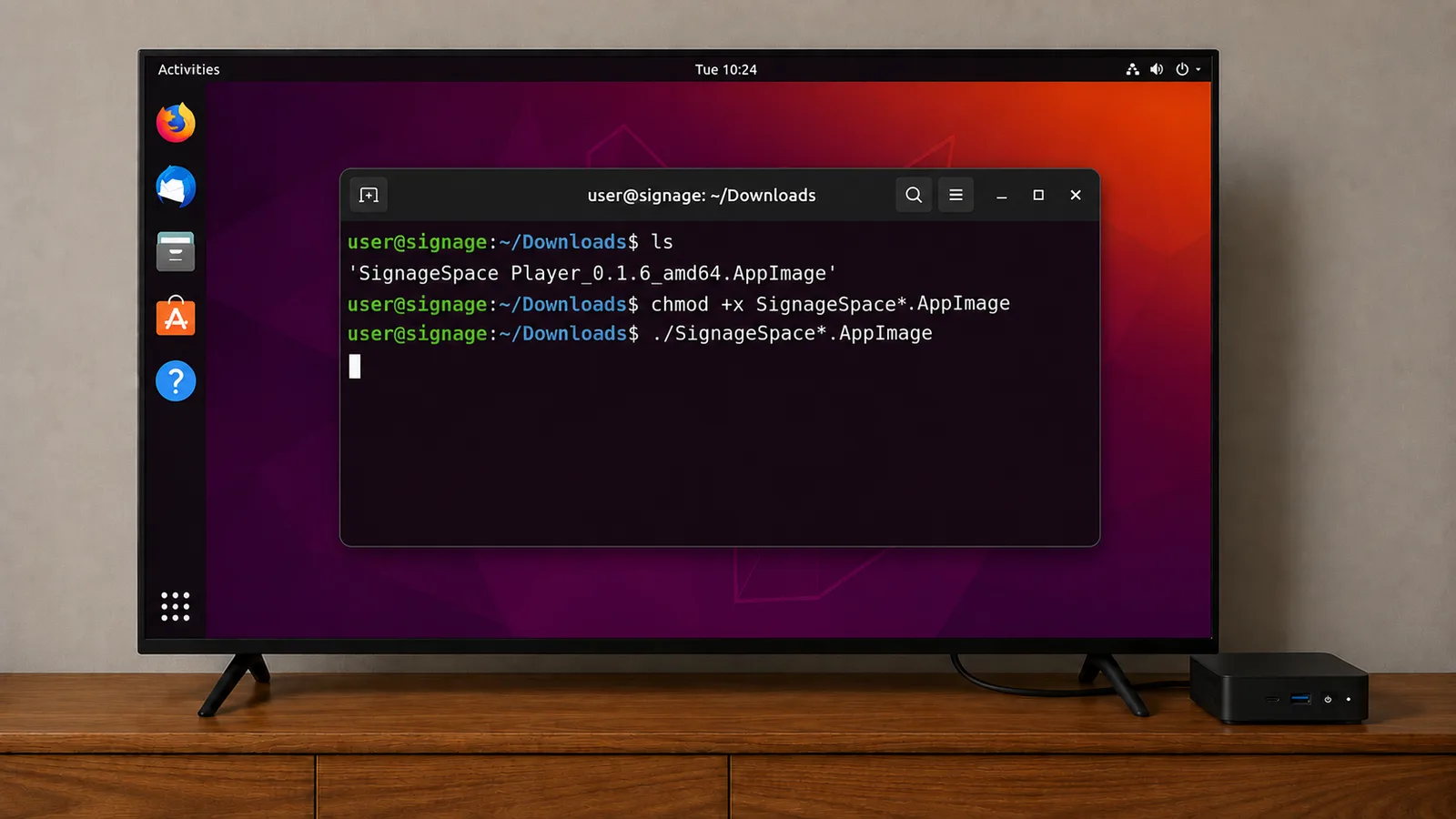
- Make it runnable — For the AppImage, mark it executable and run it: chmod +x SignageSpace*.AppImage, then ./SignageSpace*.AppImage. For .deb use sudo apt install ./<file>.deb, and for .rpm use sudo dnf install ./<file>.rpm.
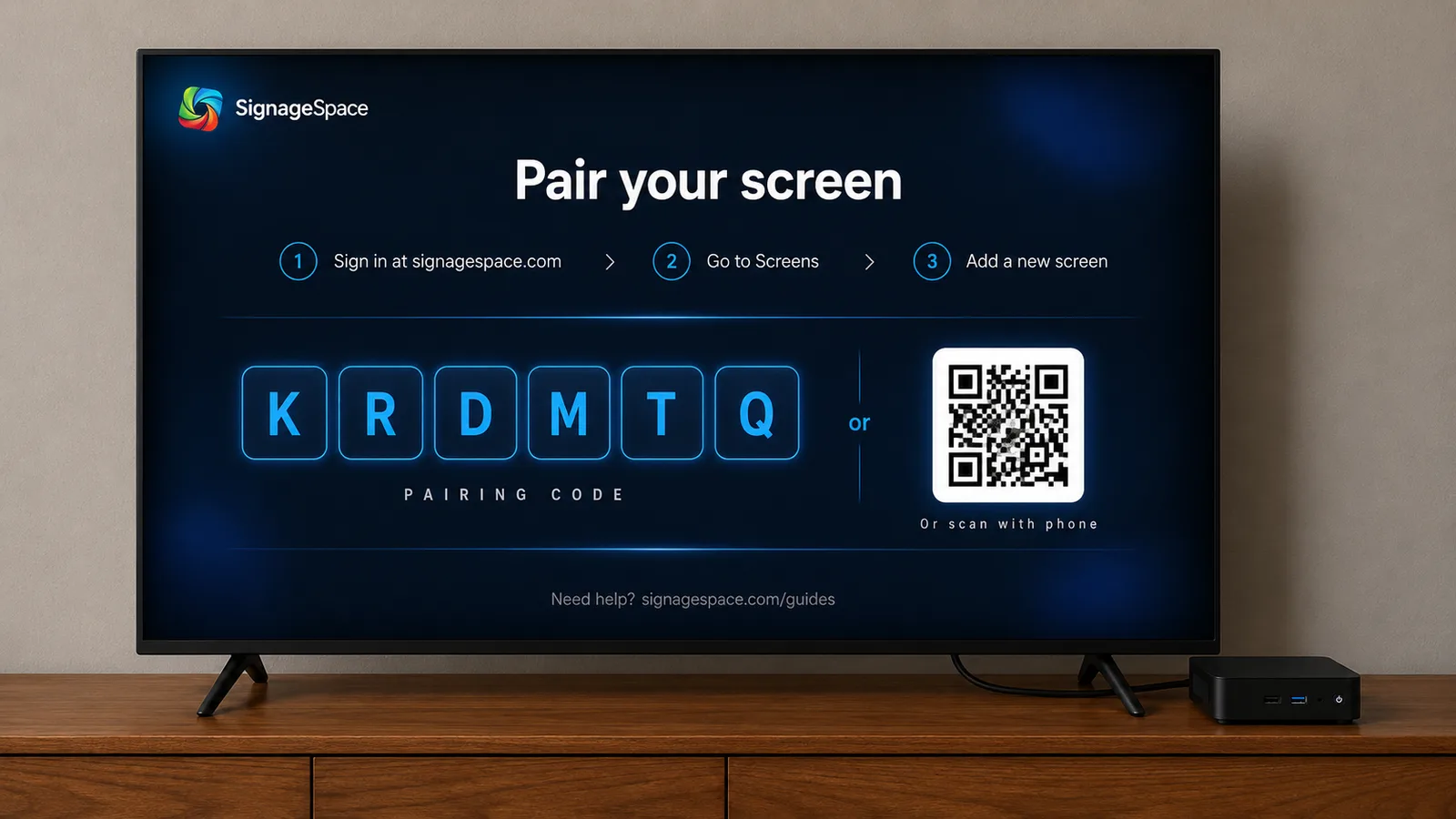
- Read the six-letter code — Put the player full screen on the TV and the six-letter code appears, ready to pair.
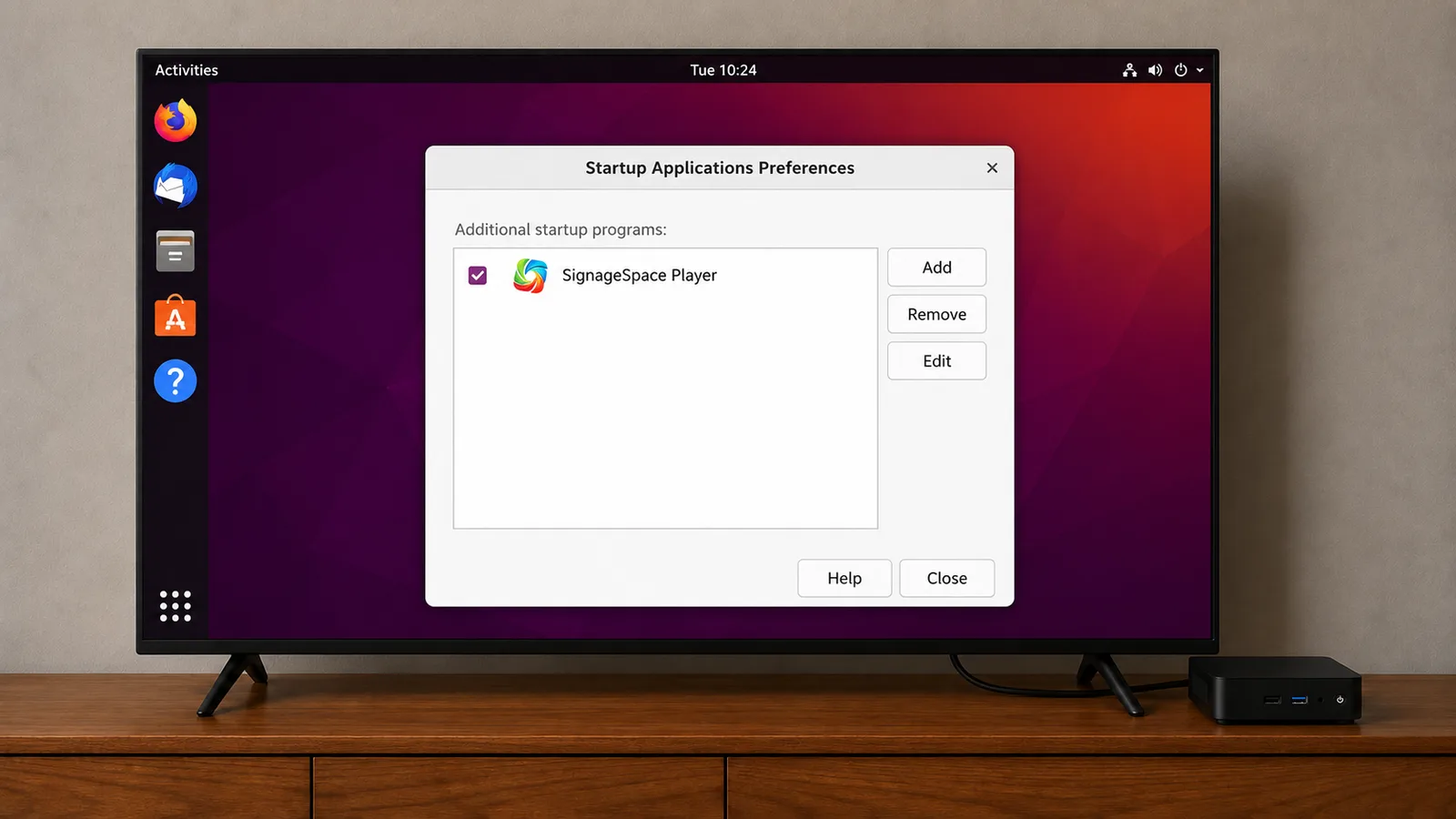
- Start it on boot — Add the player to your desktop’s startup applications so a reboot brings the screen back without anyone logging in to fix it.
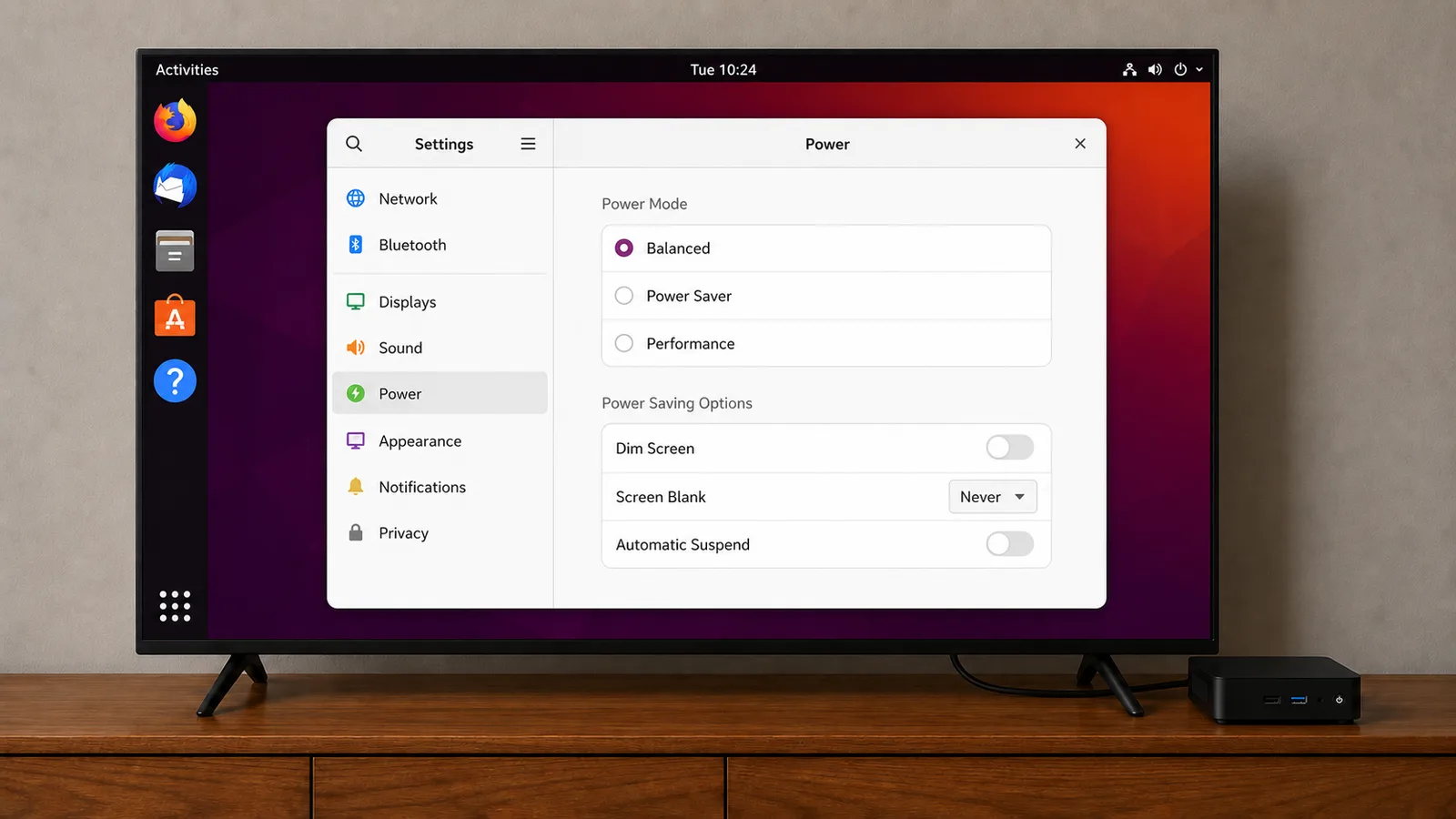
- Keep the screen awake — Turn off screen blanking and any screensaver. On a signage machine those are the two things that most often leave a wall blank.