Install Signage Space on macOS
Run the player on a Mac or Mac mini connected to a TV, on either Apple Silicon or Intel.
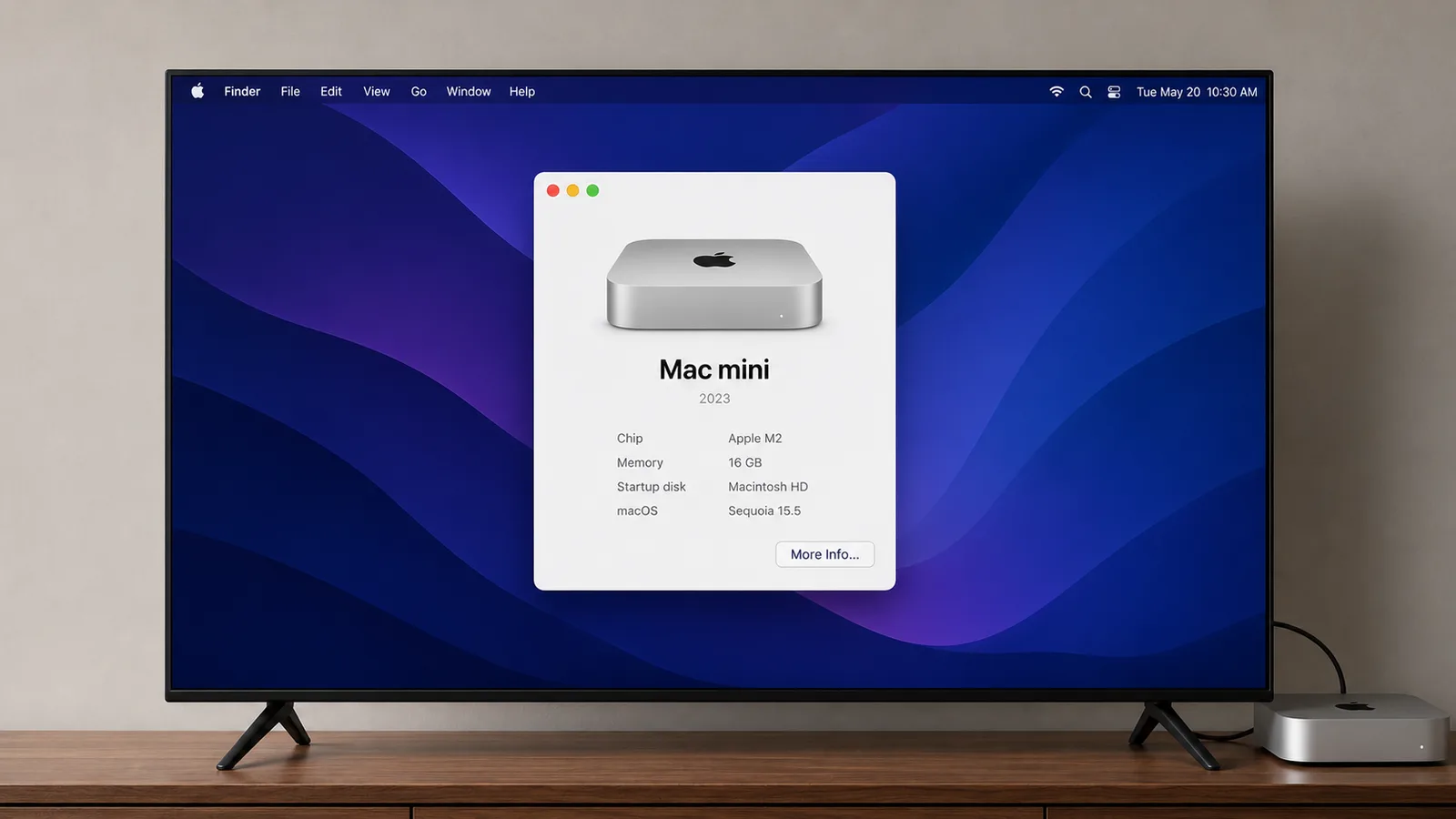
- Check which Mac you have — Apple menu → About This Mac. If it says Apple M1, M2 or M3, take the Apple Silicon build; anything listing an Intel processor takes the Intel build. The wrong one will not run.
- Connect the Mac to the screen — Plug in HDMI, or an adapter if the Mac only has USB-C, and switch the TV to that input before installing anything.
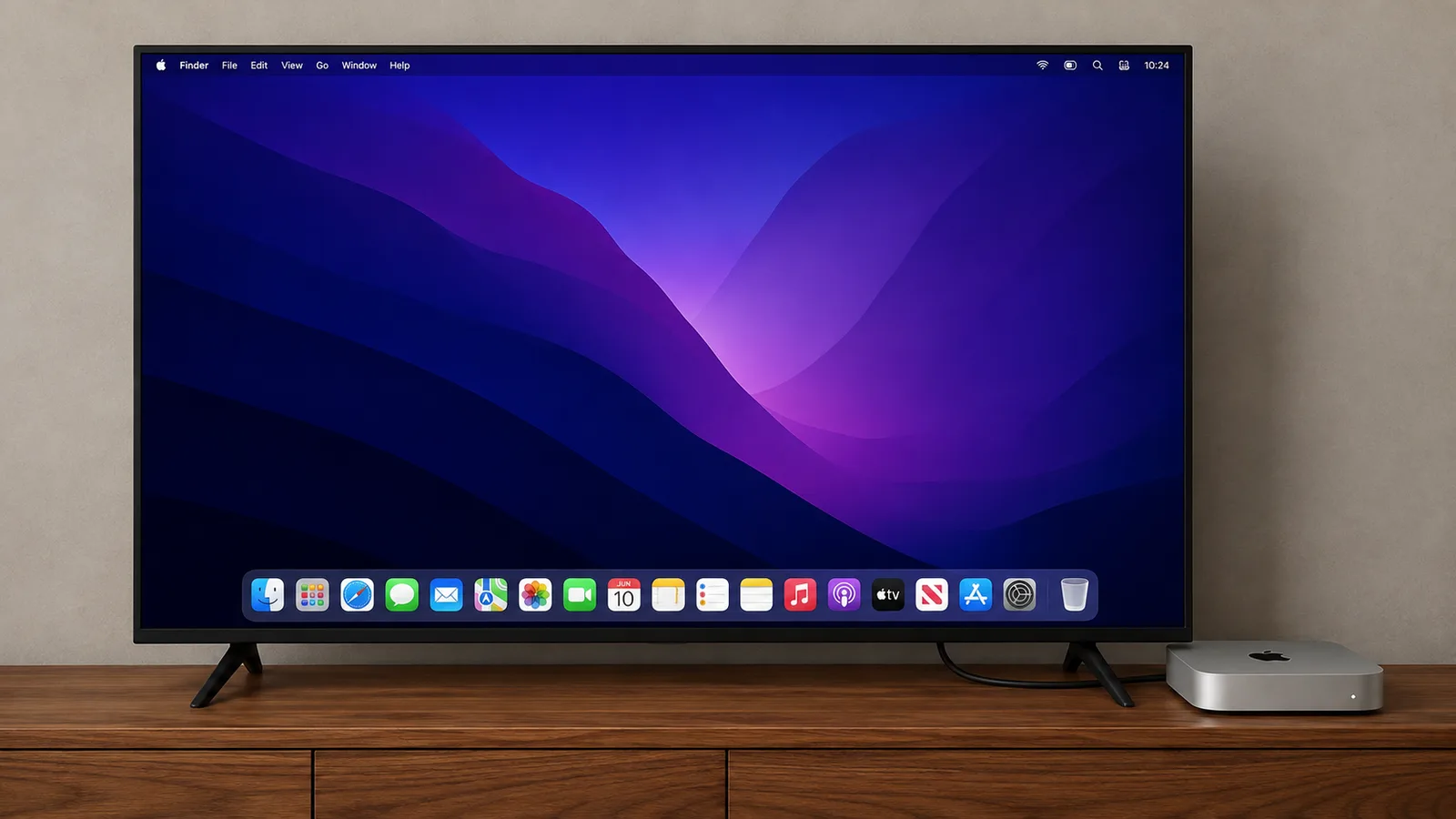
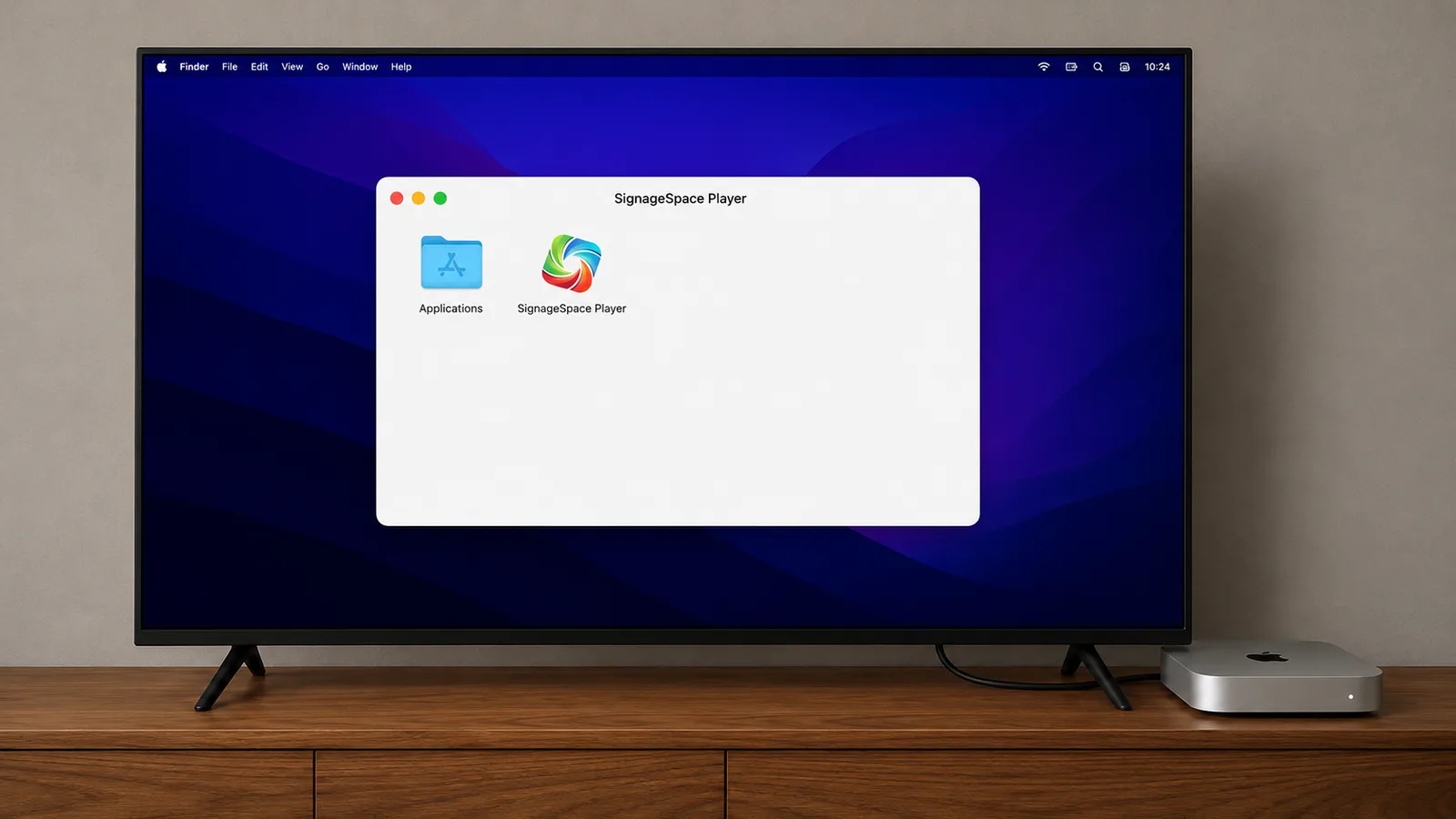
- Install the player — Open the downloaded .dmg and drag Signage Space Player into the Applications folder beside it. That is the whole install — eject the disk image once the copy finishes.
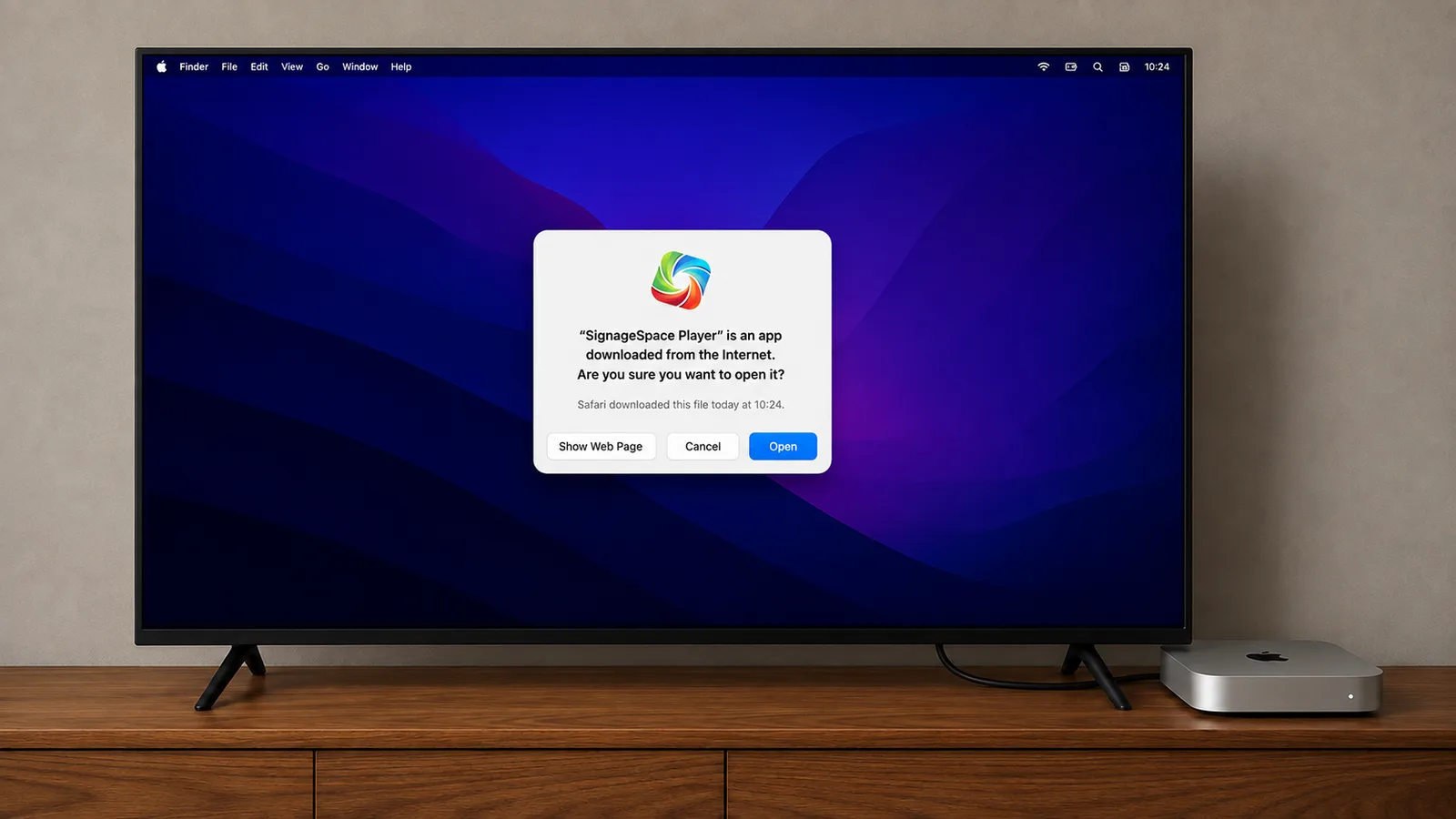
- Open it the first time — Launch it from Applications with a normal double-click. Because it came from the internet macOS asks once whether you are sure — choose Open, and it will not ask again.
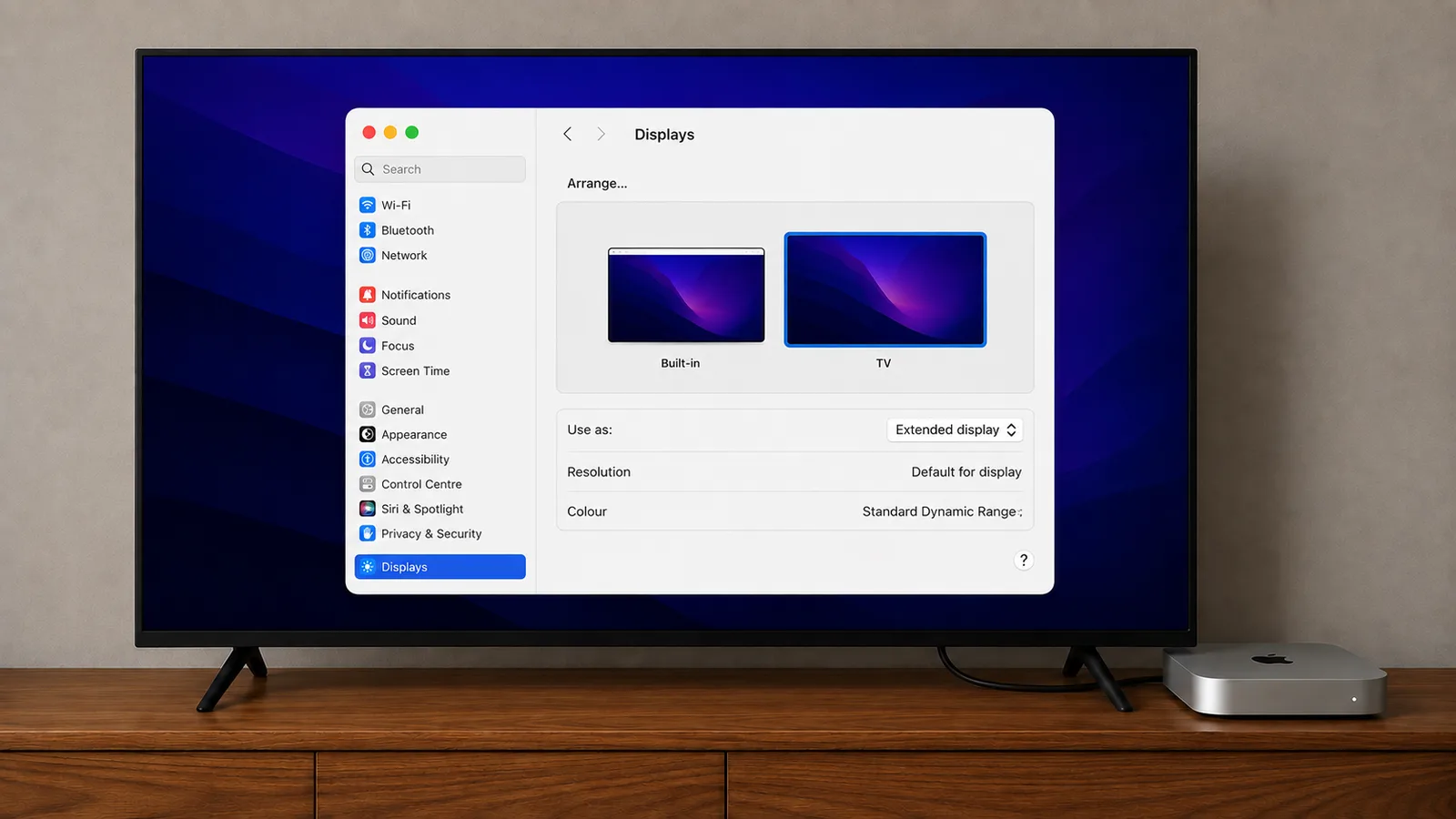
- Extend the display, do not mirror it — System Settings → Displays, and turn Mirror off so the TV is a separate screen. Then drag the player window onto the TV and make it full screen.
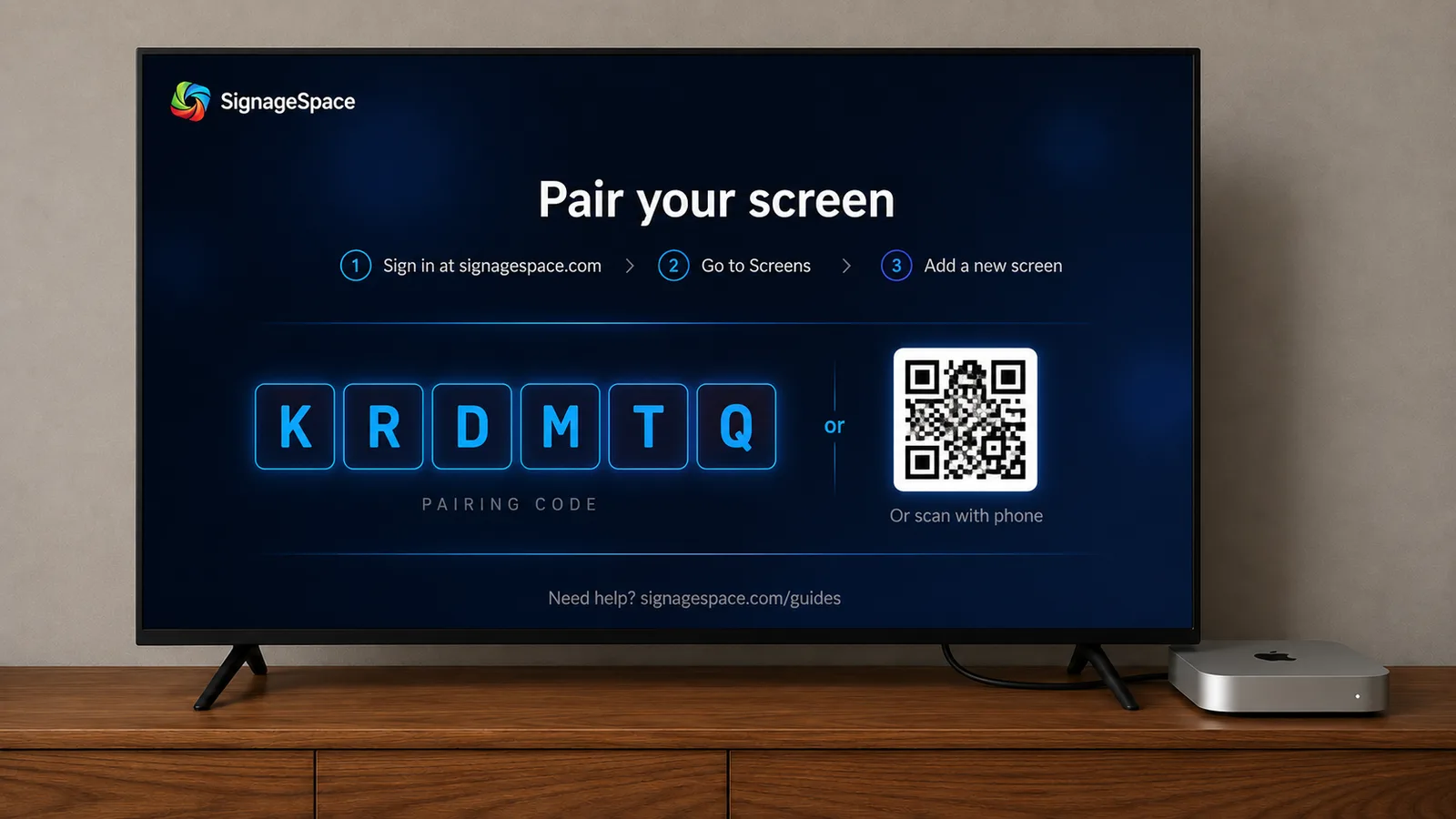
- Read the six-letter code — With the player full screen on the TV, the six-letter code is ready to pair.
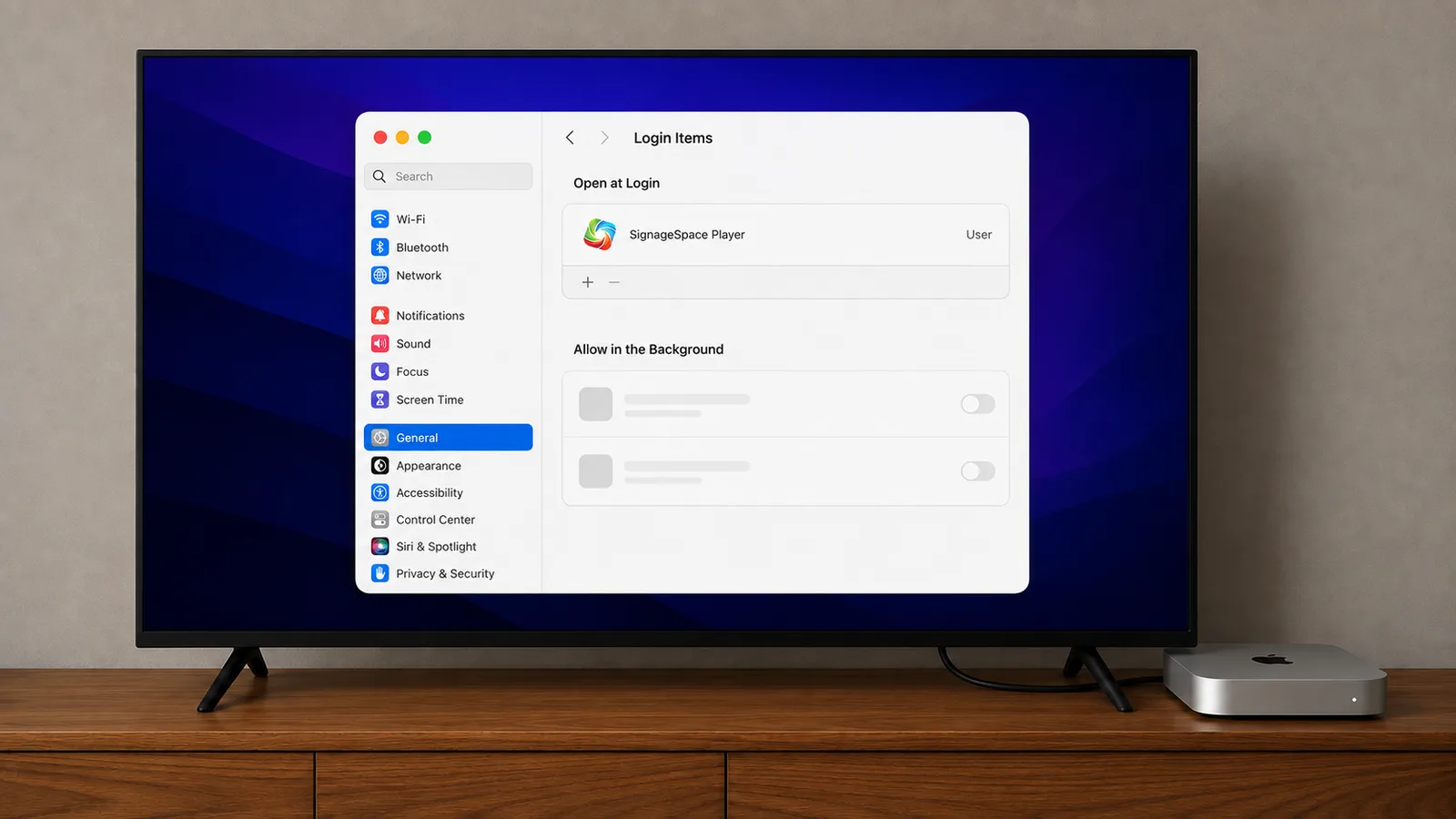
- Make it survive a restart — System Settings → General → Login Items, and add Signage Space so the screen comes back by itself after a reboot or a power cut.