Install Signage Space on Windows
Run the player on a Windows PC or mini PC wired to a TV — the usual route when the screen already has a machine behind it.
- Connect the PC to the screen first — Plug in the HDMI cable and switch the TV to that input before you install anything. Getting a picture first means that if something looks wrong later, you know it is not the cable.
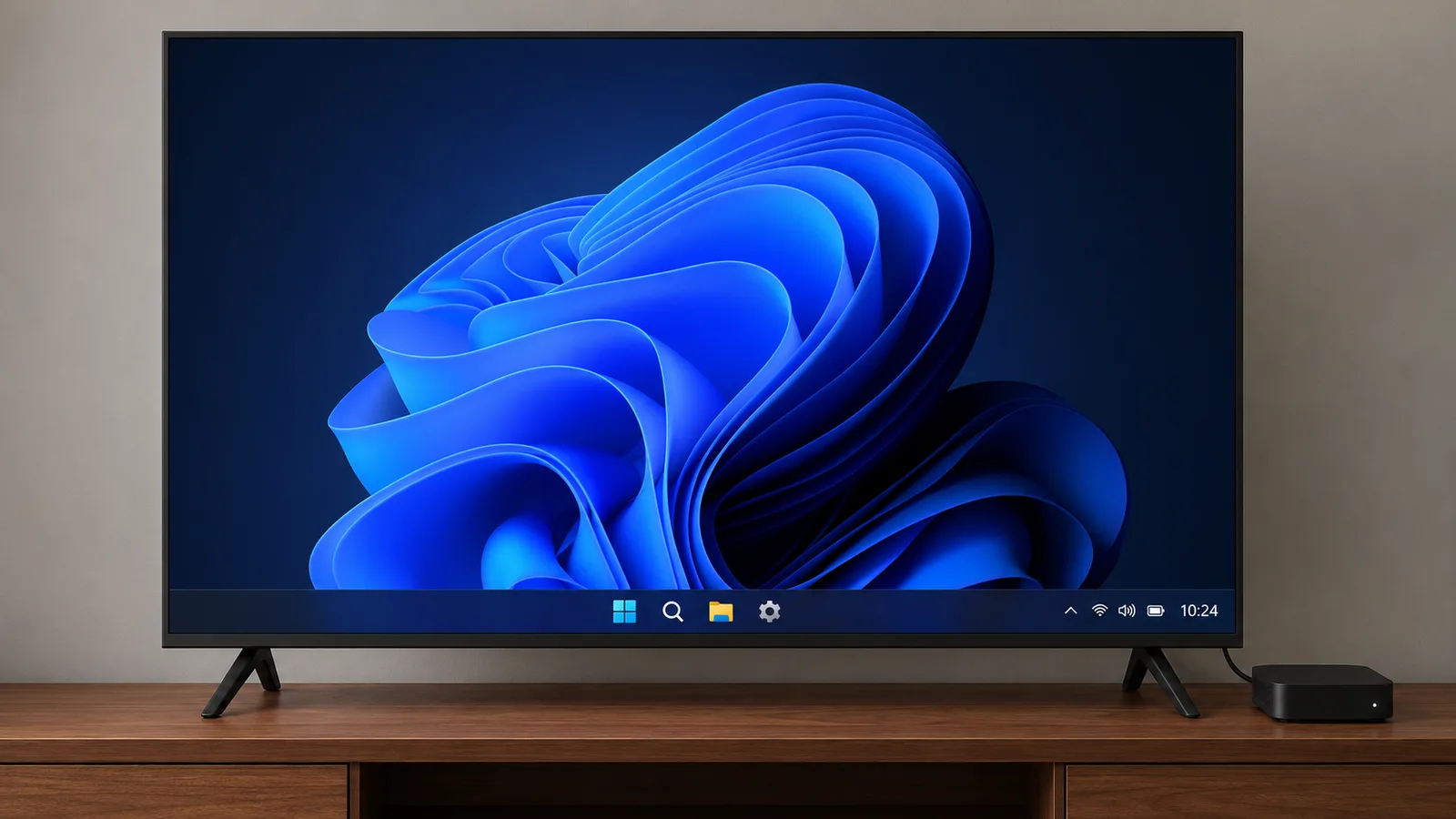
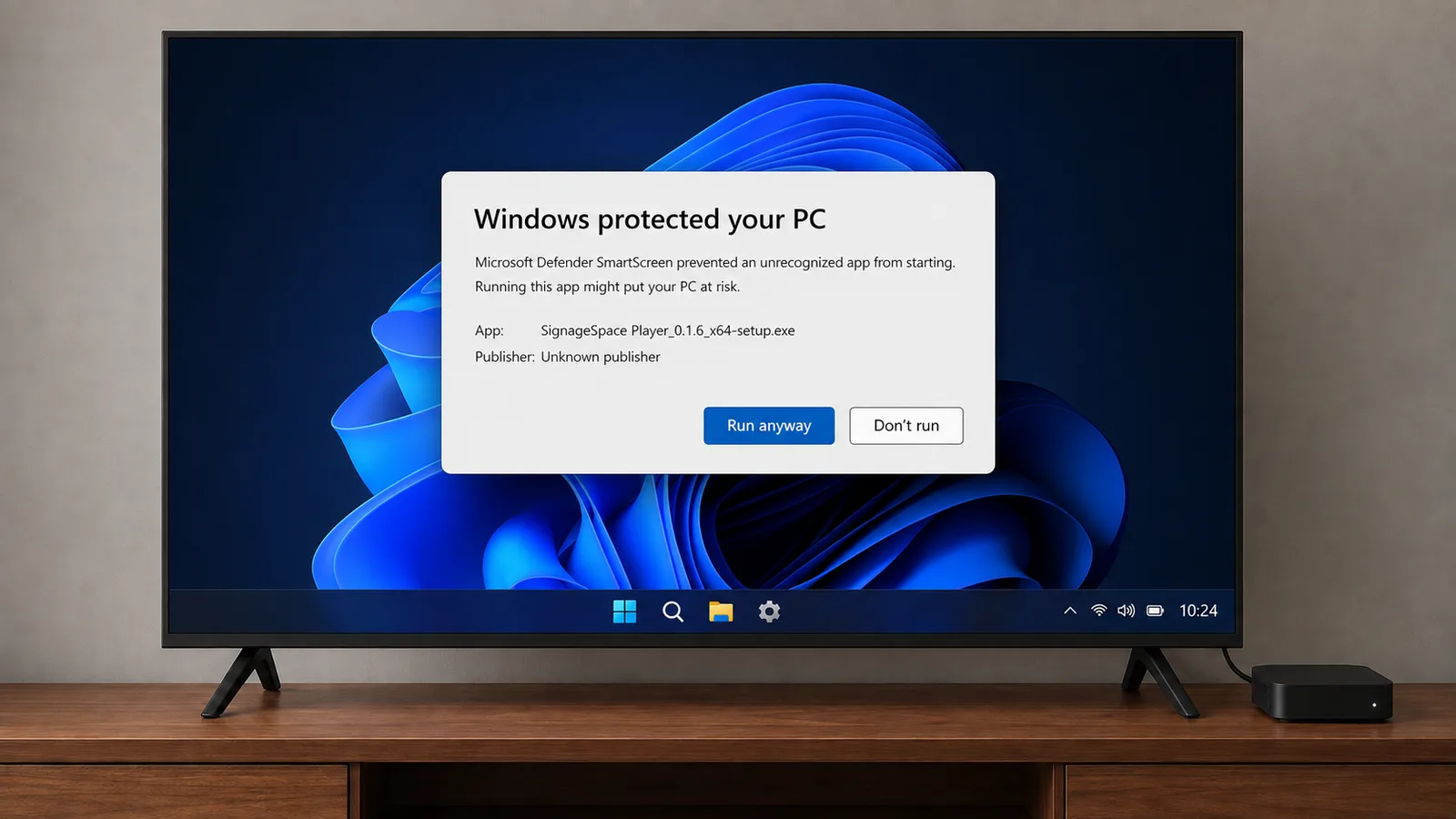
- Run the installer — Download the .exe above and run it. Windows may warn about an unrecognised publisher on first run — choose More info, then Run anyway.
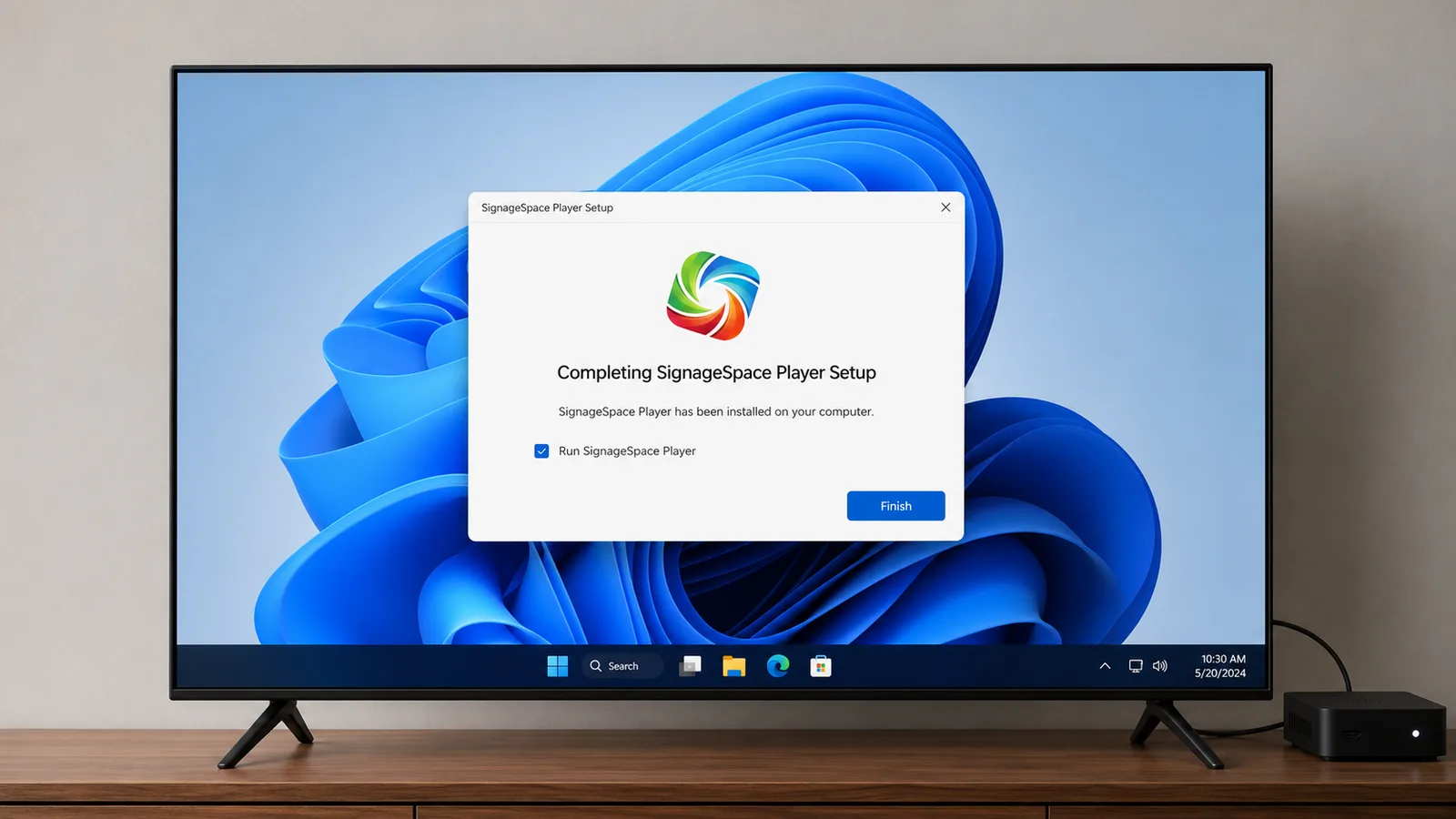
- Let it install — The installer takes a few seconds. When it finishes it offers to open Signage Space Player — leave that ticked. The player opens on whichever display Windows treats as the main one, which is what the next step sorts out.
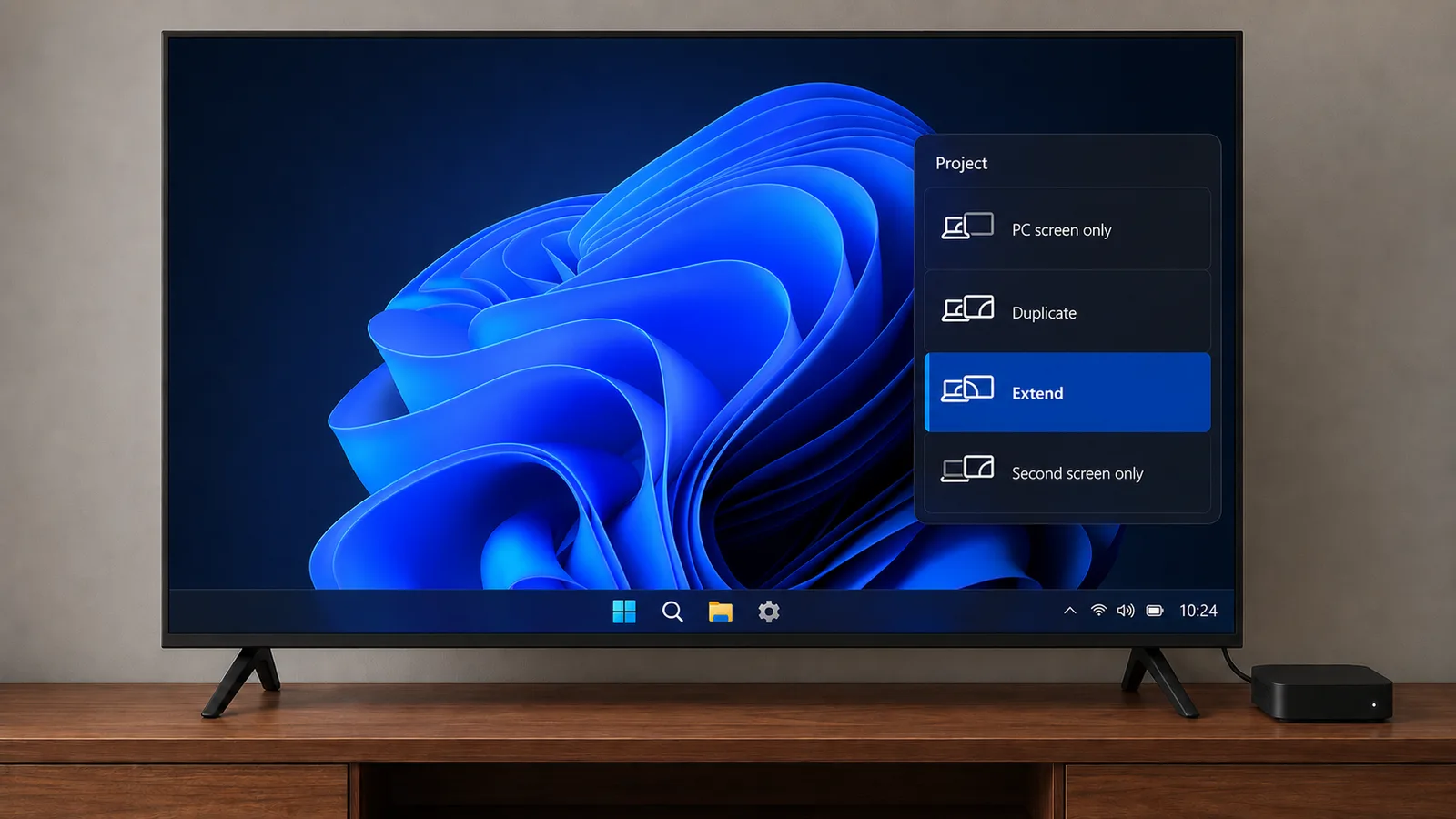
- Extend the display, do not mirror it — Press Win + P and choose Extend so the TV becomes a second screen. Mirroring puts your desktop, your notifications and your email on the wall alongside the signage.
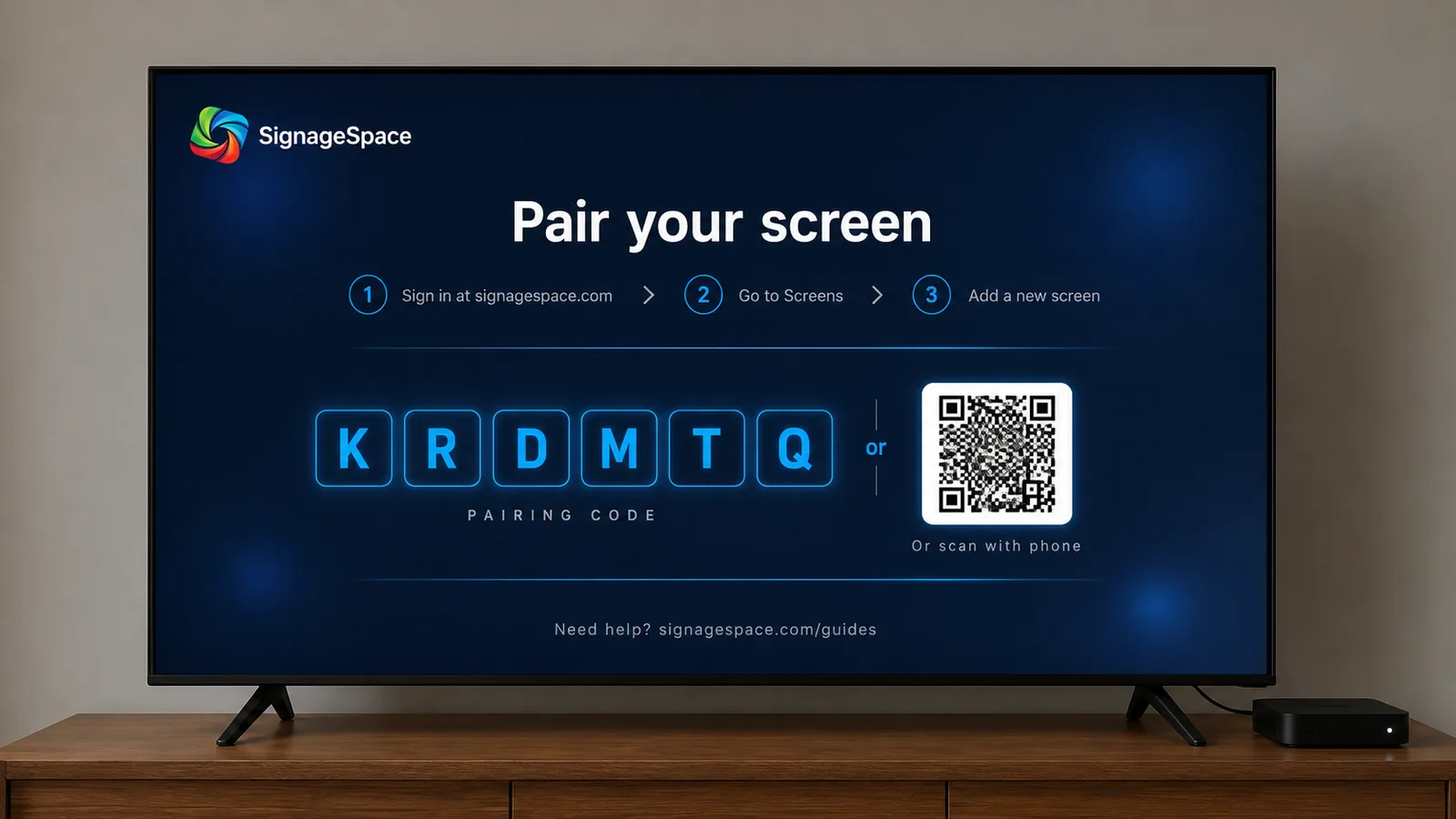
- Read the six-letter code — With the player full screen on the TV, the six-letter code is on the wall, ready to pair.
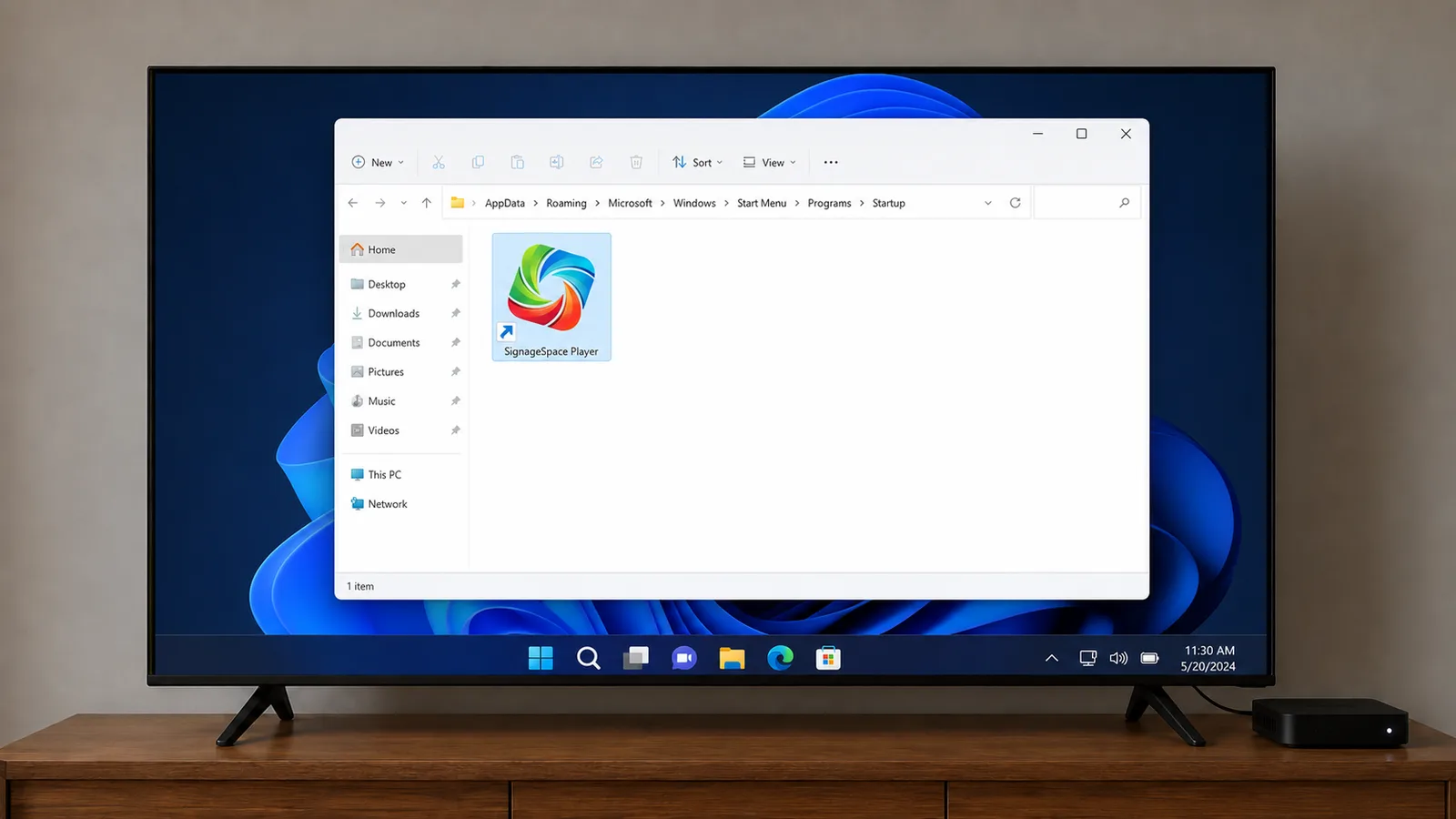
- Make it survive a restart — A PC behind a screen will reboot eventually — after an update, or after the power goes. Put a shortcut to the player in the Startup folder (Win + R, then shell:startup) so the screen comes back on its own.